
TWF Bot
Staff member
- Joined
- Nov 29, 2020
- Messages
- 3,676

- Thread Author
- #1
Hello Windows Insiders, Today, we’re releasing new Windows 11 Insider Preview builds to the Beta and Experimental Channels. Experimental Feature Flags We’ve fixed the issue causing the Feature Flags list to show empty for Insiders in the Experimental channel. You should now see Feature Flags reappear after installation of the latest Experimental build. New builds this week We’re releasing new Windows 11 Insider Preview builds today. Select your channel below to view its release notes:
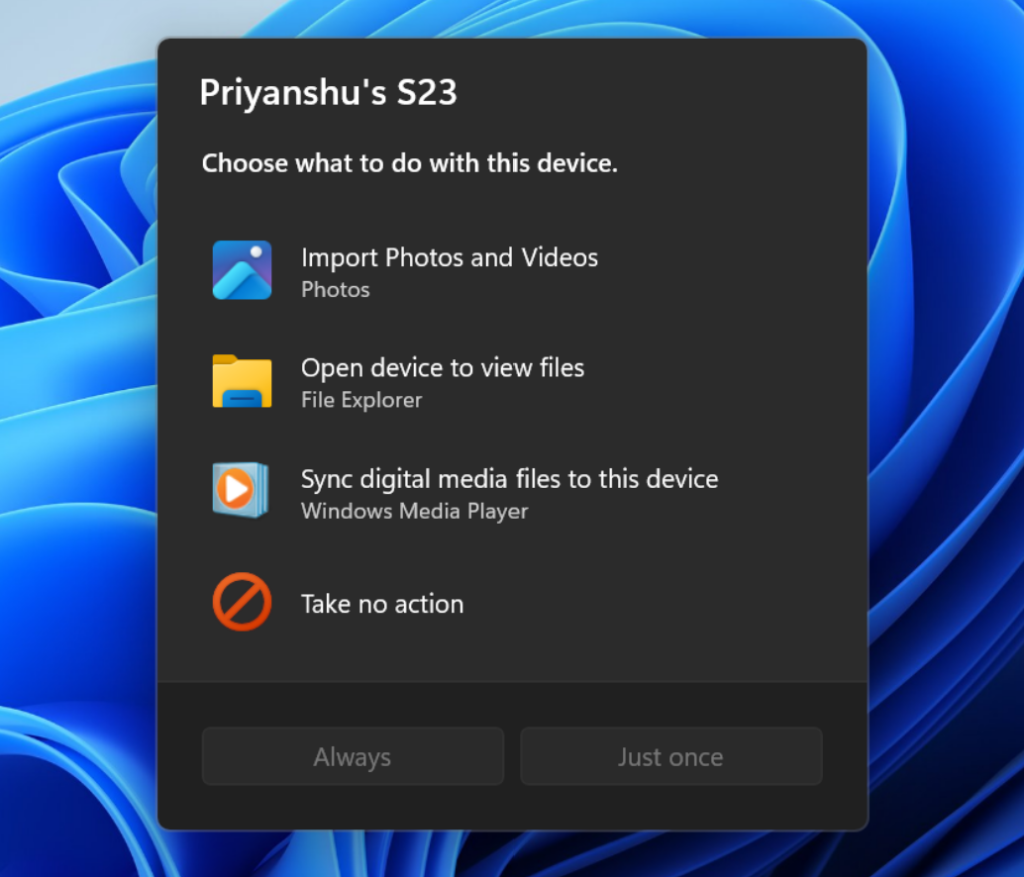 The new AutoPlay experience, shown in dark mode.[/caption]
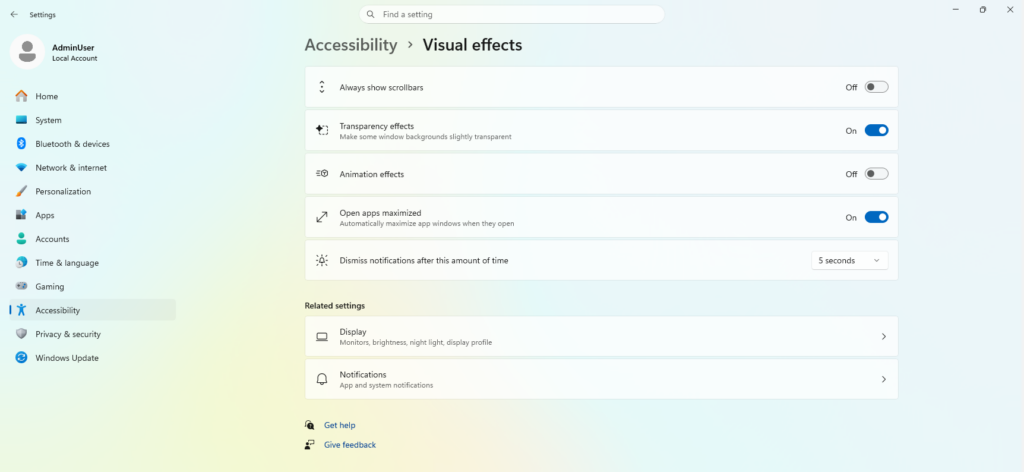 UI showing the new "Open apps maximized" accessibility setting in Settings > Accessibility > Visual effects.[/caption] Thanks, Stephen and the Windows Insider Program team
Continue reading...
- Beta: Build 26220.9223
- Experimental: Build 26340.9233
- Experimental (26H1): Build 28120.2760
Notable new features:
[Modernized Autoplay experience]
Release channel: Experimental- We've updated the AutoPlay dialog that helps you choose the preferred experience when devices are connected to your PC (e.g., a phone, camera, or removable drive). Rebuilt with WinUI, the refreshed experience is more consistent with the rest of Windows, supports dark mode, and continues to provide the familiar AutoPlay actions you use today. The experience is also more responsive to text scaling and display settings. Notifications for this dialog will now be docked in the notification center for easy access.
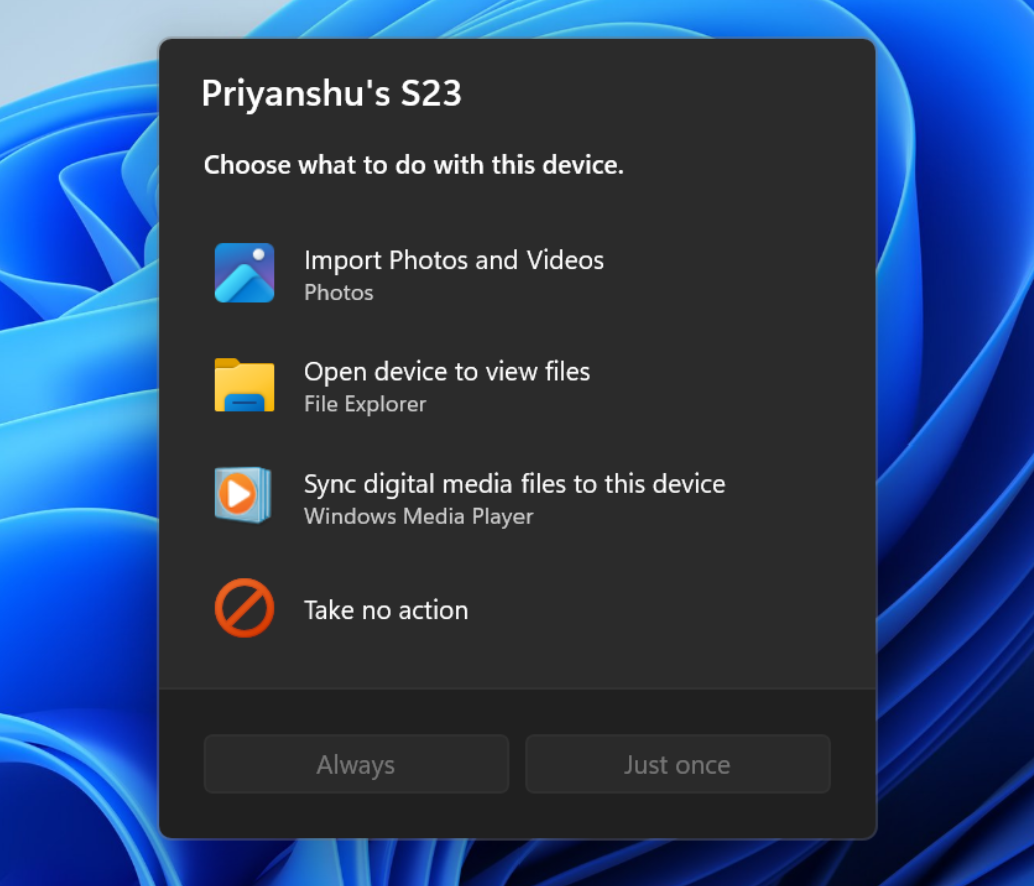 The new AutoPlay experience, shown in dark mode.[/caption]
[Accessibility]
Release channel: Experimental, Beta A simpler way to open apps maximized- We are introducing a new accessibility setting, “Open apps maximized”, that automatically maximizes app windows when they open — so you no longer have to do it yourself every time. This is a small change that removes a bit of everyday friction, whether you use a screen reader or magnification, work in tablet mode, or simply prefer a consistent, full-screen workspace.
- To turn it on, go to Settings > Accessibility > Visual effects and switch on Open apps maximized. Once enabled, Windows maximizes app windows for you as they open. Give it a try and let us know how it works for you.
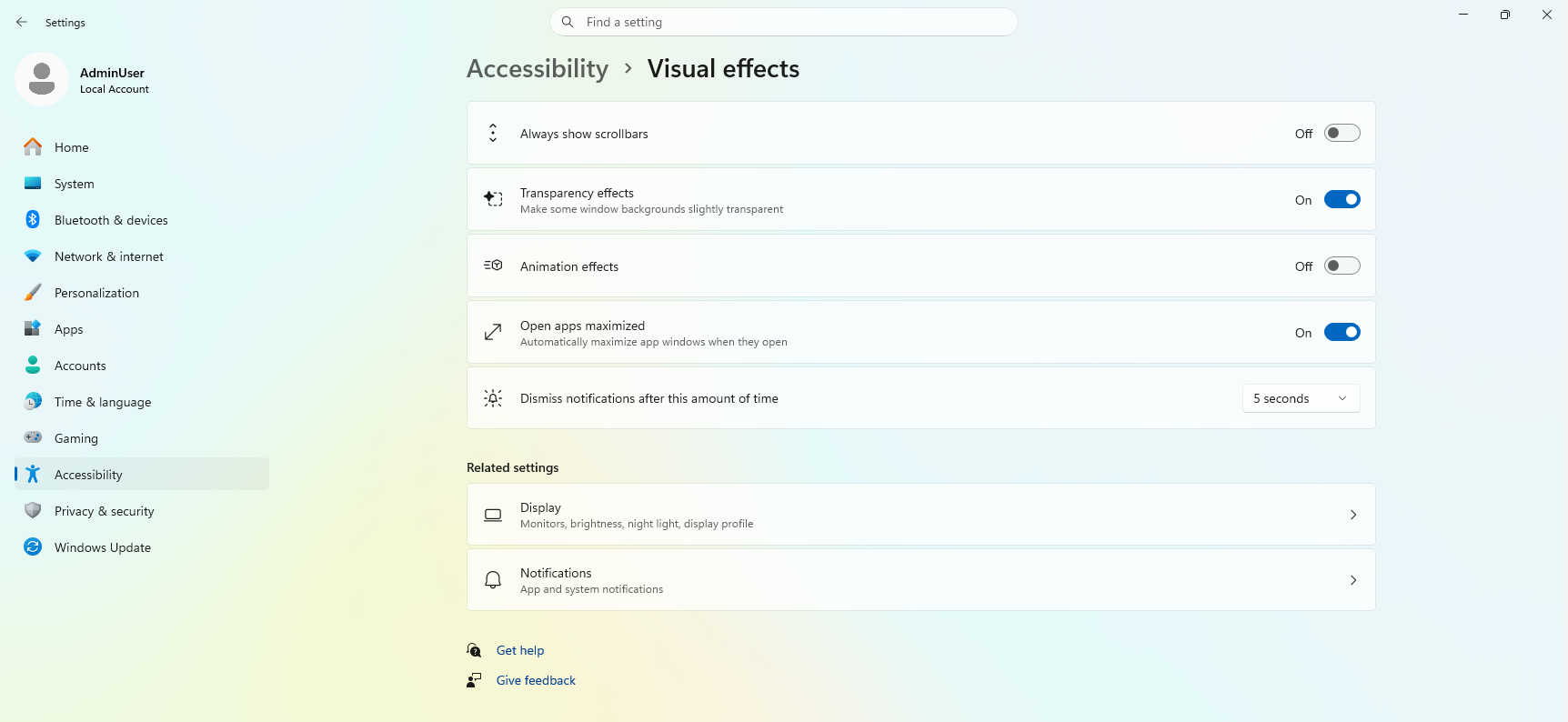 UI showing the new "Open apps maximized" accessibility setting in Settings > Accessibility > Visual effects.[/caption] Thanks, Stephen and the Windows Insider Program team
Continue reading...

