website stat Installing Microsoft office for Mac help! | The Windows Forum
Install the app
How to install the app on iOS

Follow along with the video below to see how to install our site as a web app on your home screen.

Note: This feature may not be available in some browsers.

Welcome to TheWindowsForum

Since 2010 — Over 15 years of helping Windows users worldwide.

Join thousands of Windows enthusiasts & IT pros. Ask questions, share tips, download resources, and connect with the community — free and always friendly.

  • Post & reply in threads
  • Private message other members
  • Access exclusive guides & downloads
  • NO ADS for registered users

Installing Microsoft office for Mac help!

Noodles-uk

New Member
Joined
Sep 15, 2025
Messages
2
How do I extract archive from a VLC (WinRAR Compressed Archive)?? Sorry just a beginner at this!
Thanks!
 
This read may help

How to play rar files in vlc media player​


Hello everyone!​

It's me again and I am back with another useful tutorial for VLC media player. I am sure that by now, you have already been using this beast of a media player because it is just plain awesome! I also have been using this media player for years now and it never failed me yet. It was just recently that I discovered its hidden features that not everyone knows about and that is why I wanted to share it to you guys so you could also use this awesome features.

VLC Media Player

Did you know that you can actually play rar files directly to your vlc media player without extracting it beforehand? Well, you won't have any need for winrar or any third party applications anymore to extract those compressed videos for you because vlc will do it for you. It will play your compressed video easily without any worries and hassle.

What is a RAR file?​


A RAR file (or Roshal Archieve Compressed file ) is basically a data container that holds one or more files or folders inside it. You can simply think of it as a normal folder from your computer that has smaller memory size and needs a special program to open. They are used by file sharing websites in order to have faster sharing because of the size reduction making it faster to download and upload than the normal folder. RAR files also provides security for your files because you can add a password to it and it will encrypt the file so that the contents inside would be hidden.

Now that you have learned what a RAR file is, let us start with the tutorial.

First, open up your vlc media player, if you still haven't installed it yet in your computer. I kindly advise you to download and install it. You can get the software from their website, just click on this link here: https://www.videolan.org/vlc/index.html. After clicking it you will then be redirected into their official site. In their click on the Download button (the default OS is for windows) or you can click the drag down menu and choose your Operating system.
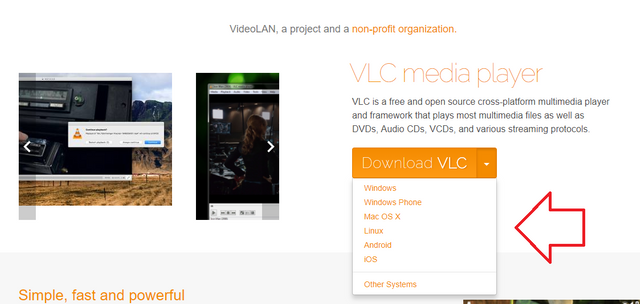
image.png

After selecting your Operating System, it will redirect you to their downloading page. It will then download the file automatically into your computer.
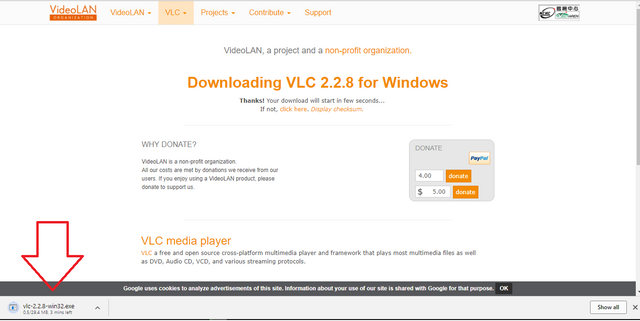
image.png

But if for some reason, your file is still not downloading automatically, you can just do it manually by click the click here option. After clicking it, a link will appear immediately this will be the direct link for their file. Just click it and it will now download the VLC media player software into your computer.
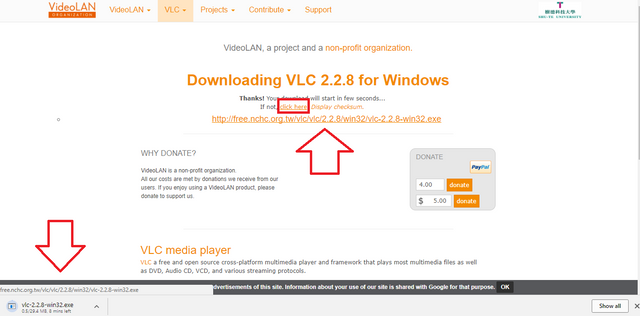
image.png

After the download has finished, click the downloaded file to start the installation.

Select your preferred language and hit Ok.
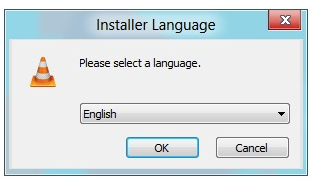
image.png

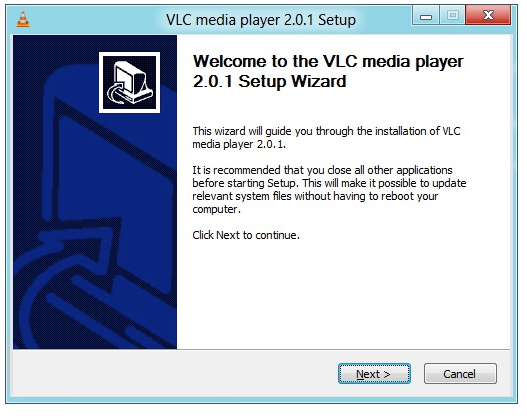
After click the Ok button, this welcome screen will appear asking for you confirmation. Just hit Next to go to the next step.
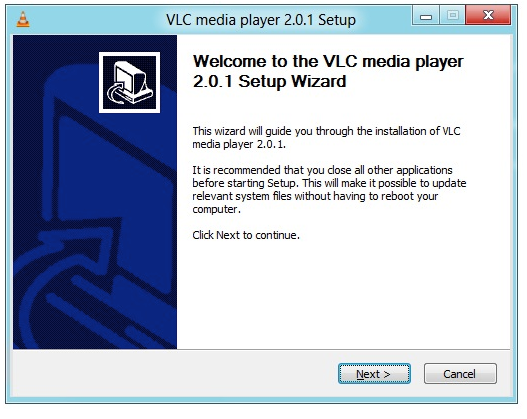
image.png

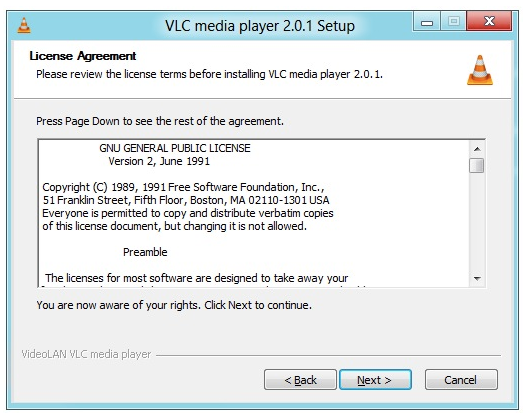
Now, the terms of service of VLC will appear. You should read it carefully to know your rights as a user. After reading it, hit Next.
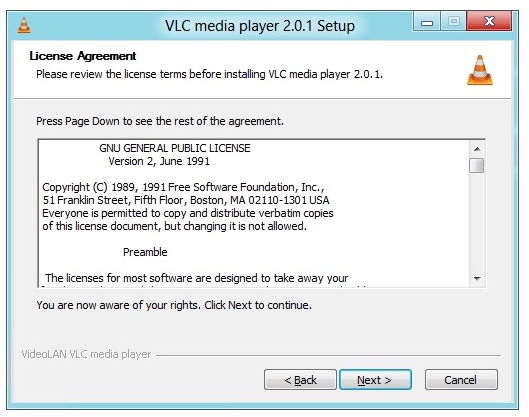
image.png

After clicking Next, you will be given the options to choose which components you wish to install with VLC. I recommend checking it all to have the whole package. After that hit Next.
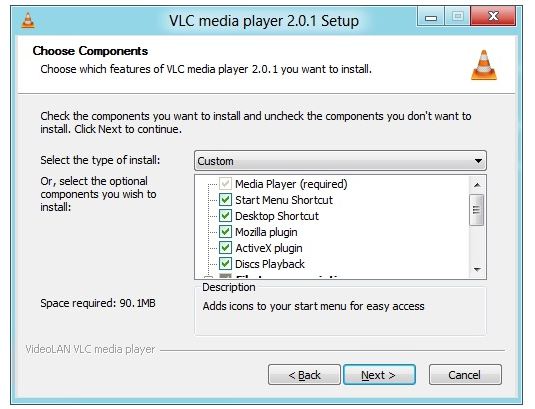
image.png

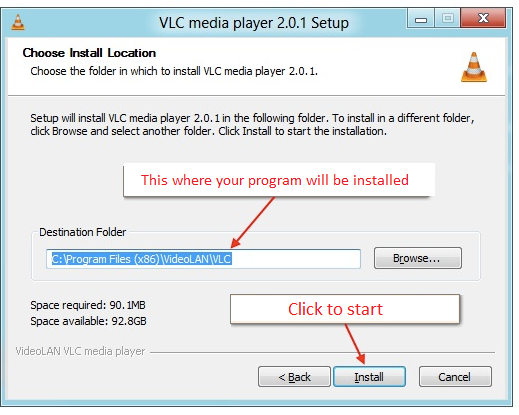
Click on Browse button to search for a location to place your installed file. After that click the Install button to start the installation process.
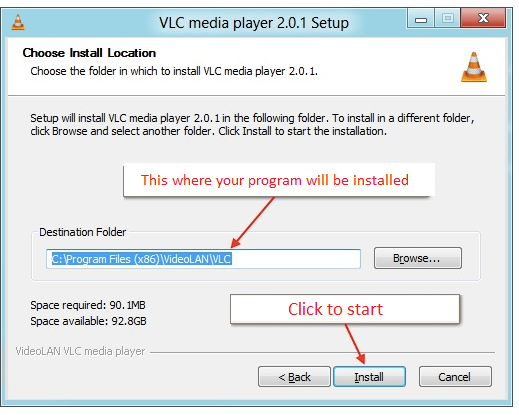
image.png

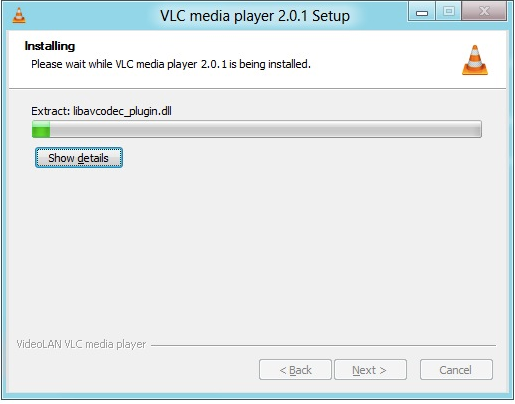
All we can do now is wait while VLC is being installed in your computer.
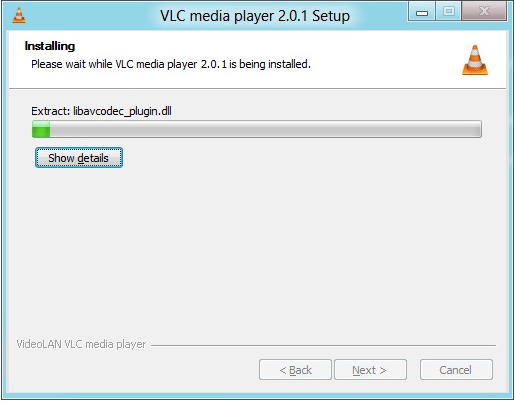
image.png

After the installation is done check the Run VLC media player and click the Finish button to finish the set up and open your VLC media player.
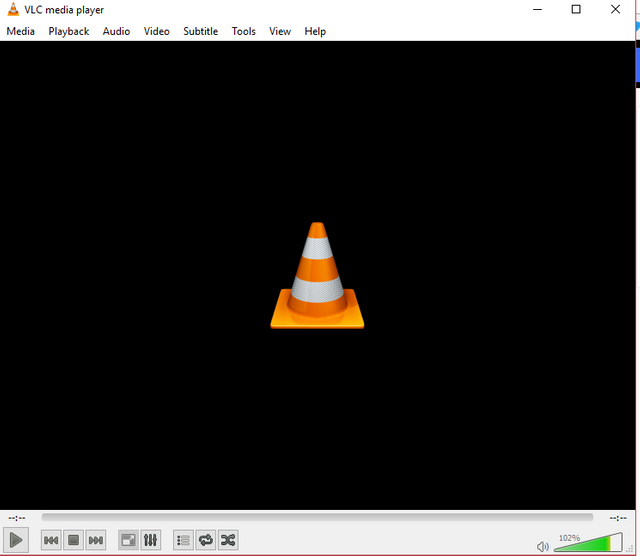
image.png

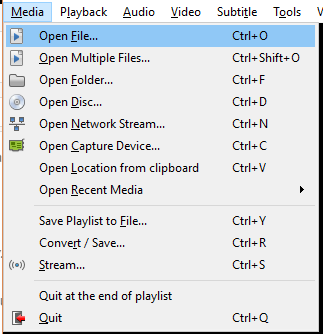
Now, that you have your VLC media player ready, click on the Media > Open file or you can just press Ctrl + O in your keyboard.
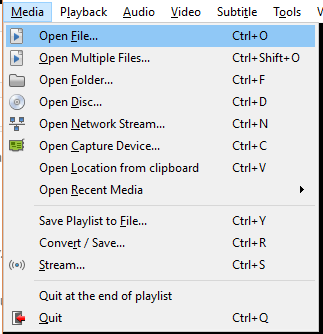
image.png

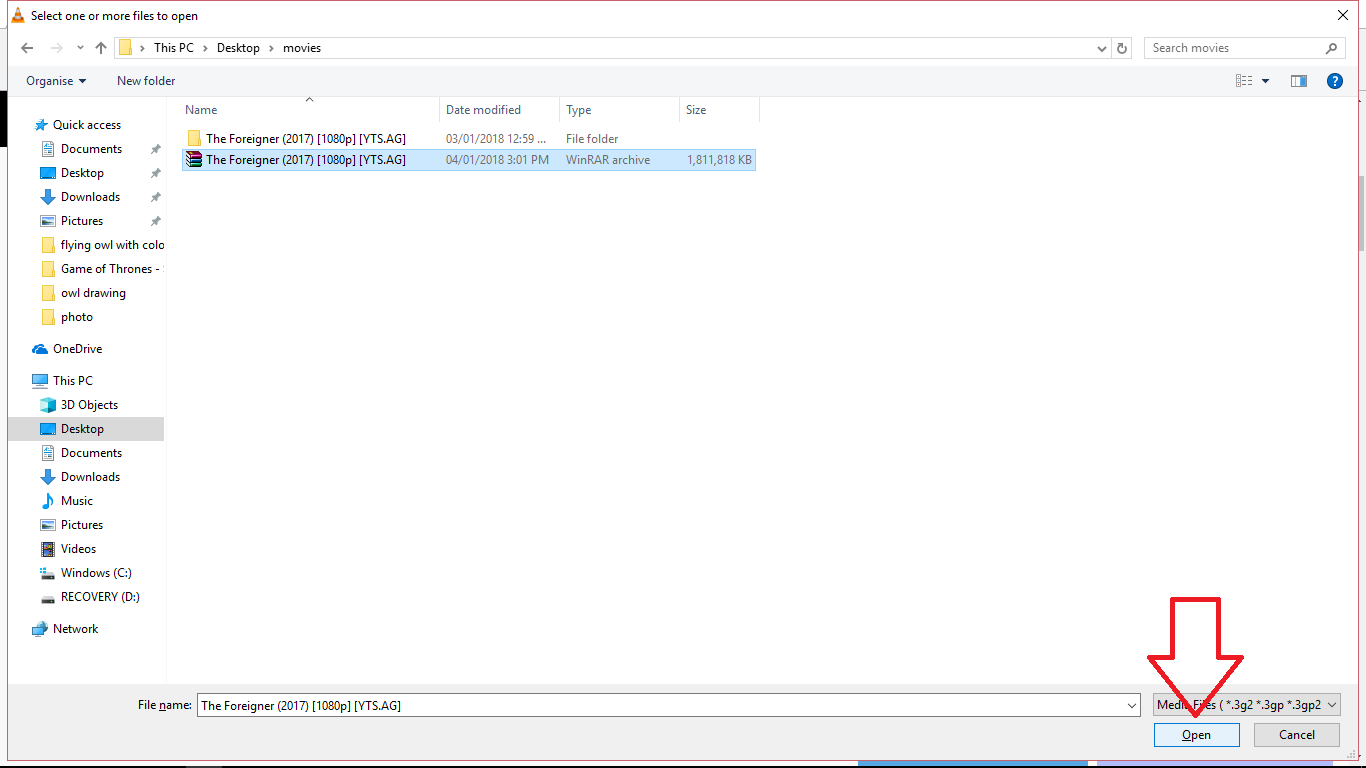
After clicking, it will open up your file manager. There you can search for your compressed video file. RAR files are easily distinguishable from other folders because they basically look like stacked books.

Now that you selected the video file, hit Open so that it will open be loaded up in the VLC media player.
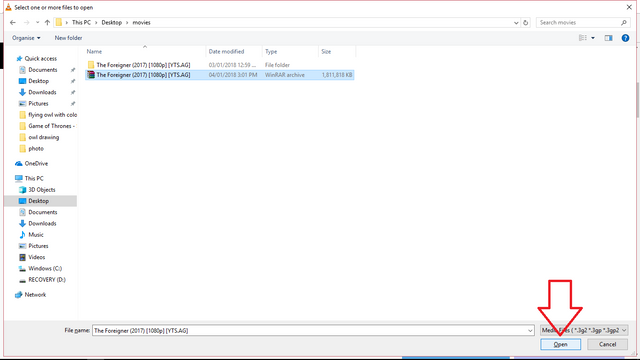
image.png

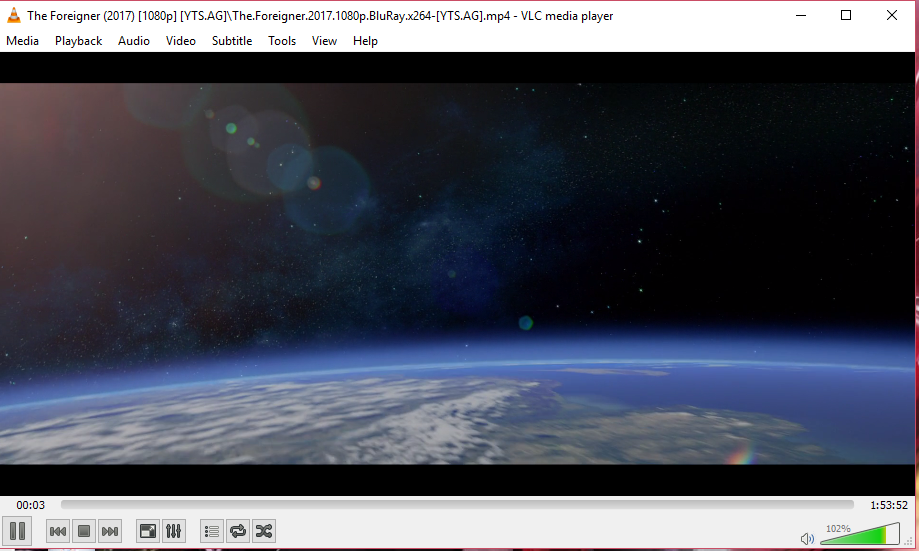
After your movie has been loaded up to VLC media player, it will now play it like a regular file. You don't have to extract it yourself to see it because VLC is capable of reading rar file videos.
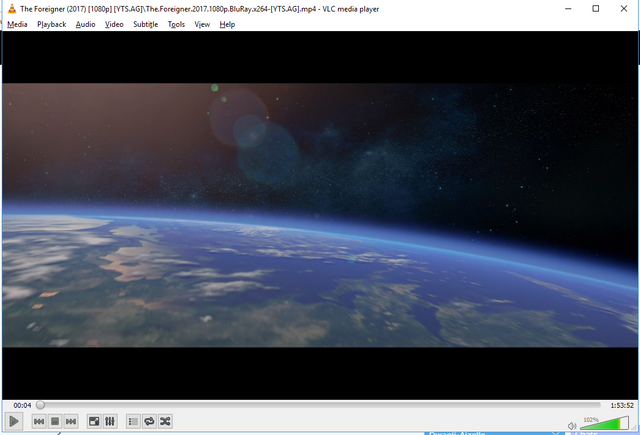
image.png

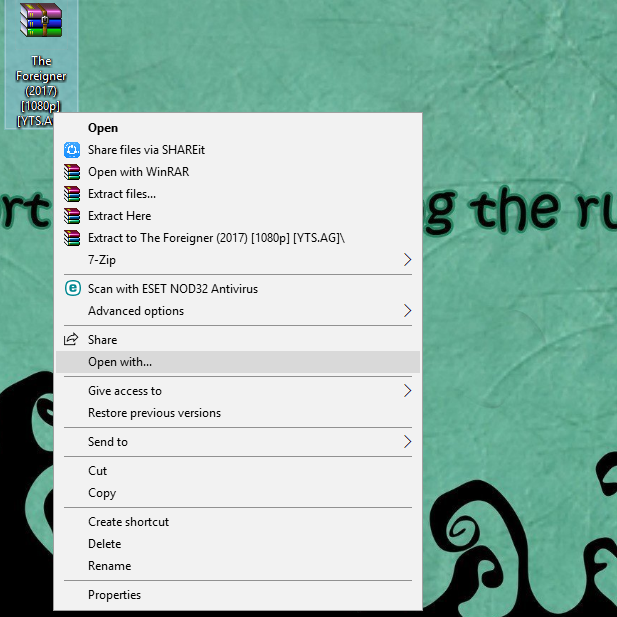
You can also play your video by right clicking the file, then selecting the Open with option.
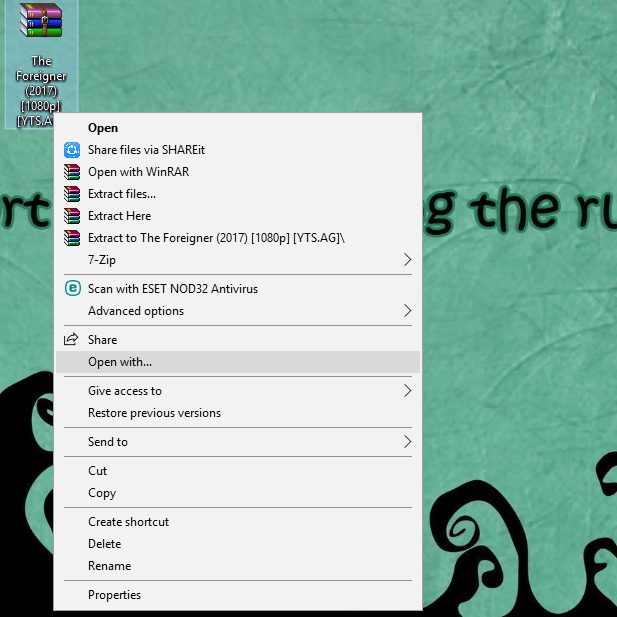
image.png

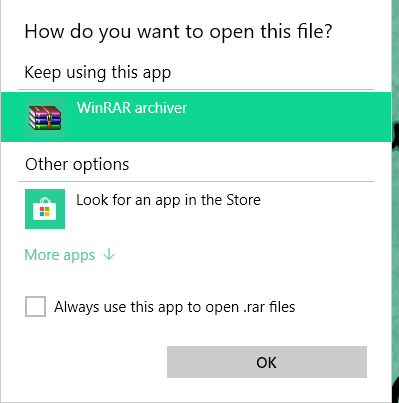
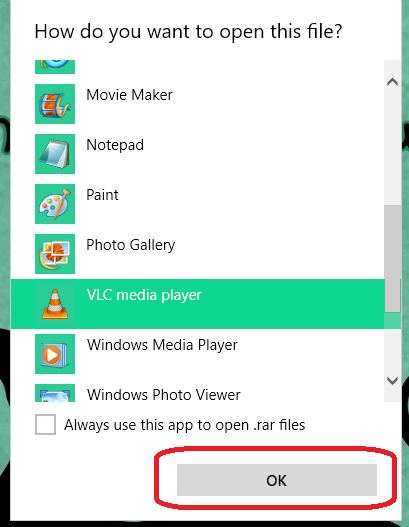
After that windows will ask you, what type of application you want this video file to be open with.
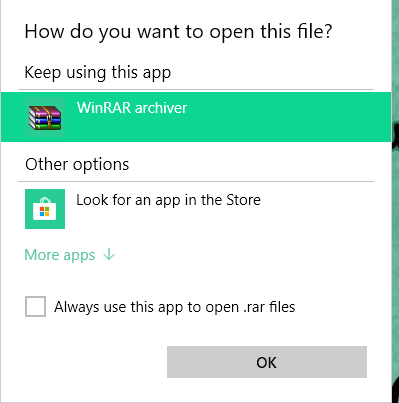
image.png

If you can't see VLC media player in the options, just click More apps. This will display the hidden applications, there you can find and select VLC media player.
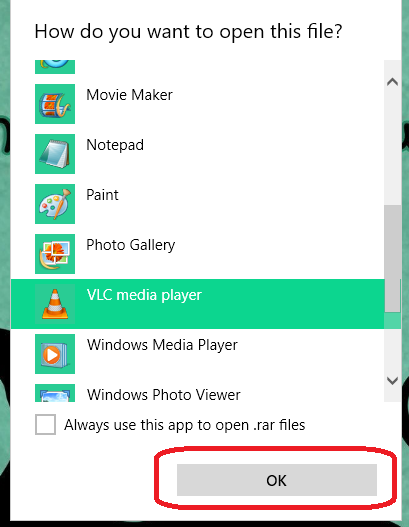
image.png

After choosing VLC it will open the program and start playing your video file normally without the need of decompressing the video file.
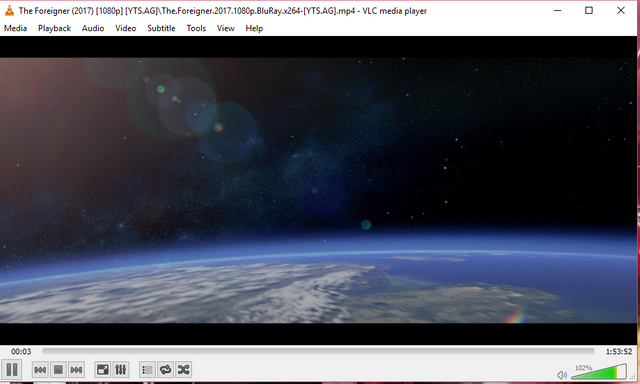
image.png

You can now enjoy your video clip or movies without the hassle of extracting the file beforehand.

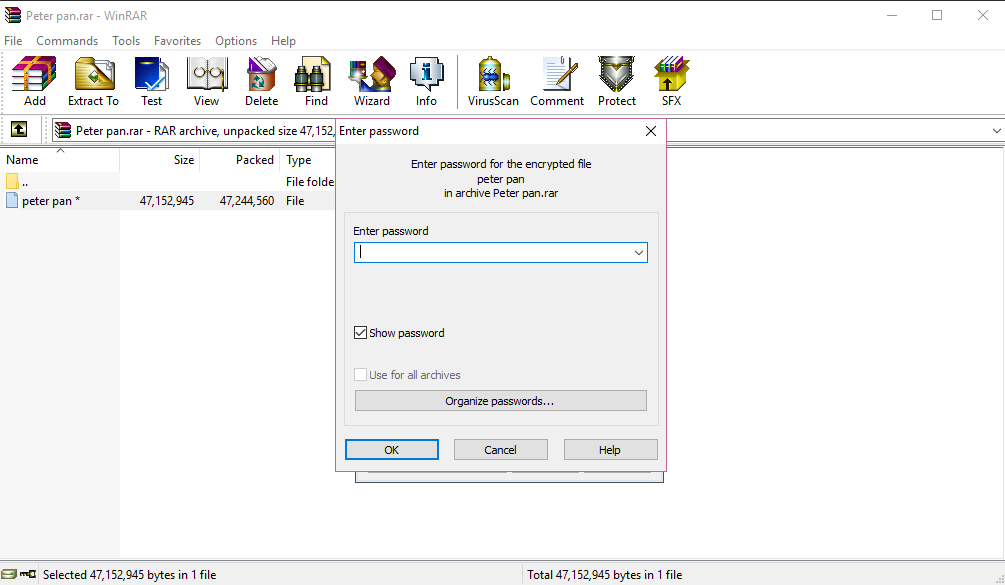
Unfortunately it cannot open the rar files that are protected by a password directly, you still have to type in the password before you can play it. It still respects the privacy of the owner.
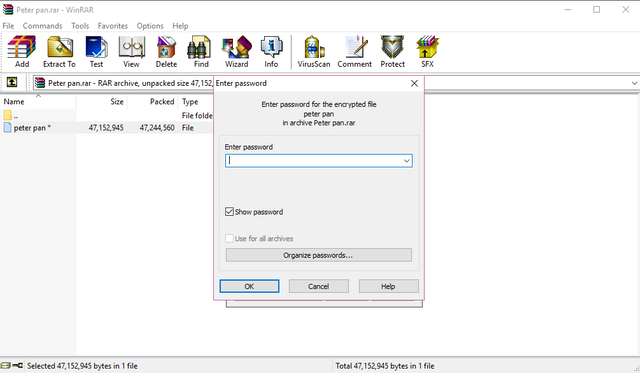
image.png

After you have typed the password, it will open the file and ask for a player to open it with. Just click VLC media player.
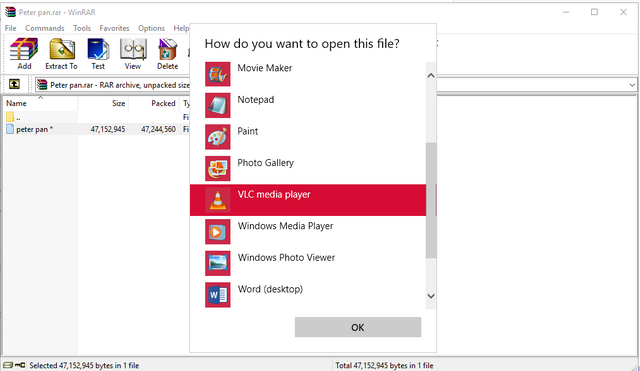
image.png

You can now watch the password protected movie in VLC media player.
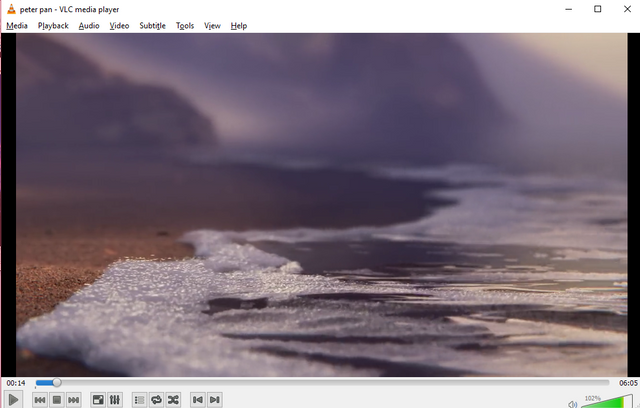
image.png

And so, that the end of my tutorial. I hope you find this guide to be useful for you .
Until next time
 
Thanks for the help!

I now have another issue ... I installed MS Office from one of your downloads. Originally Word worked fine however now it is not allowing me to edit and wants me to activate Microsoft 365 to do this?

Do you have any suggestions?
Should I post this elsewhere?

Thanks!
 
Give me some time Friday to have a look at my MacBook. I just upgraded the O/S and installed Office. I'll get back to this thread then.
 
Sorry, busy week. GF is out of town so I am holding down the fort.
I installed "Microsoft Office LTSC 2024 for Mac v16.89.2" . I picked it up from a torrent. Embarrassed to say I forgot the release group. Easy install, runs like a champ.
Be aware a Mac install is completely different than a Windows install. Read the instructions and take your time and follow them.
 
You can download Microsoft Office LTSC Standard for Mac 2024 v16.101 VL Multilingual from
LINK-REMOVED

Once your download is complete and you've unzipped the files, make sure to read the README file first. It instructs you to run the Activation.pkg file before proceeding with the Setup.pkg.

Regards
 
Last edited by a moderator:
This read may help

How to play rar files in vlc media player​


Hello everyone!​

It's me again and I am back with another useful tutorial for VLC media player. I am sure that by now, you have already been using this beast of a media player because it is just plain awesome! I also have been using this media player for years now and it never failed me yet. It was just recently that I discovered its hidden features that not everyone knows about and that is why I wanted to share it to you guys so you could also use this awesome features.

VLC Media Player

Did you know that you can actually play rar files directly to your vlc media player without extracting it beforehand? Well, you won't have any need for winrar or any third party applications anymore to extract those compressed videos for you because vlc will do it for you. It will play your compressed video easily without any worries and hassle.

What is a RAR file?​


A RAR file (or Roshal Archieve Compressed file ) is basically a data container that holds one or more files or folders inside it. You can simply think of it as a normal folder from your computer that has smaller memory size and needs a special program to open. They are used by file sharing websites in order to have faster sharing because of the size reduction making it faster to download and upload than the normal folder. RAR files also provides security for your files because you can add a password to it and it will encrypt the file so that the contents inside would be hidden.

Now that you have learned what a RAR file is, let us start with the tutorial.

First, open up your vlc media player, if you still haven't installed it yet in your computer. I kindly advise you to download and install it. You can get the software from their website, just click on this link here: https://www.videolan.org/vlc/index.html. After clicking it you will then be redirected into their official site. In their click on the Download button (the default OS is for windows) or you can click the drag down menu and choose your Operating system.

image.png

After selecting your Operating System, it will redirect you to their downloading page. It will then download the file automatically into your computer.

image.png

But if for some reason, your file is still not downloading automatically, you can just do it manually by click the click here option. After clicking it, a link will appear immediately this will be the direct link for their file. Just click it and it will now download the VLC media player software into your computer.

image.png

After the download has finished, click the downloaded file to start the installation.

Select your preferred language and hit Ok.

image.png

After click the Ok button, this welcome screen will appear asking for you confirmation. Just hit Next to go to the next step.

image.png

Now, the terms of service of VLC will appear. You should read it carefully to know your rights as a user. After reading it, hit Next.

image.png

After clicking Next, you will be given the options to choose which components you wish to install with VLC. I recommend checking it all to have the whole package. After that hit Next.

image.png

Click on Browse button to search for a location to place your installed file. After that click the Install button to start the installation process.

image.png

All we can do now is wait while VLC is being installed in your computer.

image.png

After the installation is done check the Run VLC media player and click the Finish button to finish the set up and open your VLC media player.

image.png

Now, that you have your VLC media player ready, click on the Media > Open file or you can just press Ctrl + O in your keyboard.

image.png

After clicking, it will open up your file manager. There you can search for your compressed video file. RAR files are easily distinguishable from other folders because they basically look like stacked books.

Now that you selected the video file, hit Open so that it will open be loaded up in the VLC media player.
image.png

After your movie has been loaded up to VLC media player, it will now play it like a regular file. You don't have to extract it yourself to see it because VLC is capable of reading rar file videos.

image.png

You can also play your video by right clicking the file, then selecting the Open with option.

image.png

After that windows will ask you, what type of application you want this video file to be open with.

image.png

If you can't see VLC media player in the options, just click More apps. This will display the hidden applications, there you can find and select VLC media player.

image.png

After choosing VLC it will open the program and start playing your video file normally without the need of decompressing the video file.

image.png

You can now enjoy your video clip or movies without the hassle of extracting the file beforehand.

Unfortunately it cannot open the rar files that are protected by a password directly, you still have to type in the password before you can play it. It still respects the privacy of the owner.

image.png

After you have typed the password, it will open the file and ask for a player to open it with. Just click VLC media player.

image.png

You can now watch the password protected movie in VLC media player.

image.png

And so, that the end of my tutorial. I hope you find this guide to be useful for you .
Until next time
Thanks.
 

Support TheWindowsForum

Help us stay ad-free and keep the community running

Donate Now

Trending content

Back
Top