
TWF Bot
Staff member
- Joined
- Nov 29, 2020
- Messages
- 3,683

- Thread Author
- #1
Hello Windows Insiders, Today, we’re releasing new Windows 11 Insider Preview builds to the Beta, Experimental, and Release Preview channels. New builds this week Select your channel below to view its release notes:
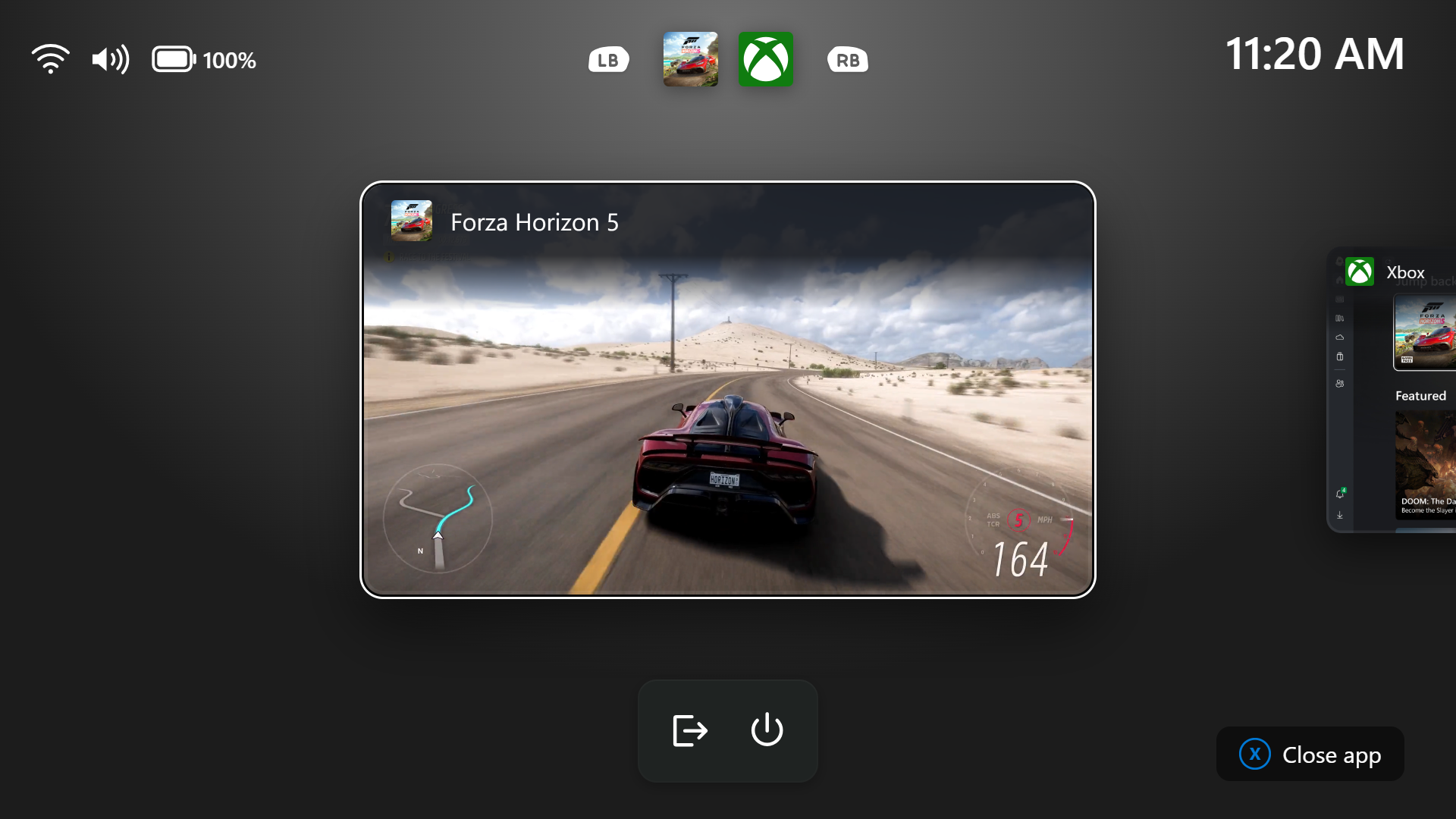 Gaming Task View showing the new navigation bar with Exit to Desktop and Power options.[/caption]
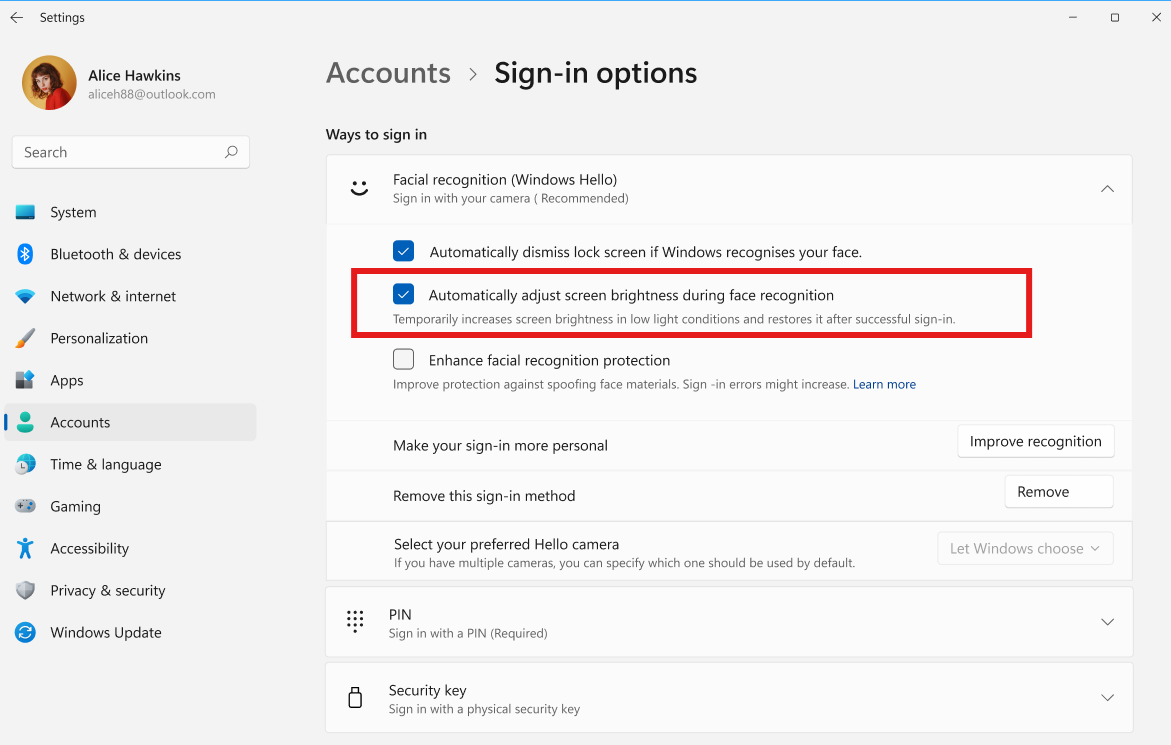 The setting to automatically adjust screen brightness during Windows Hello facial recognition.[/caption] Thanks, Stephen and the Windows Insider Program team
Continue reading...
- Beta: Build 26220.9739
- Experimental: Build 26340.9750
- Beta (26H1): Build 28020.3262
- Experimental (26H1): Build 28120.3272
- Experimental (Future Platforms): We do not have an Experimental (Future Platforms) build today
- Release Preview (25H2/26H2): Build 26200.9807/Build 26300.9807
- Release Preview (26H1): Build 28000.3351
Notable new features:
[Gaming]
Release channel: Beta, Experimental- We're introducing a refreshed Gaming Task View experience in XBOX mode, featuring a new navigation bar that provides quick access to Exit to Desktop and Power Options. This update makes key system actions easier to access while gaming.
Gaming Task View showing the new navigation bar with Exit to Desktop and Power options.[/caption][Windows Hello]
Release channel: Experimental- Windows Hello facial recognition can temporarily brighten your screen to help you sign in when you're in a dark or dimly lit room.
- To turn on this feature, go to Settings > Accounts > Sign-in options > Facial recognition (Windows Hello) and turn on Automatically adjust screen brightness during face recognition.
The setting to automatically adjust screen brightness during Windows Hello facial recognition.[/caption] Thanks, Stephen and the Windows Insider Program teamContinue reading...
