
TWF Bot
Staff member
- Joined
- Nov 29, 2020
- Messages
- 3,676

- Thread Author
- #1
Hello Windows Insiders, Today, we’re releasing new Windows 11 Insider Preview builds to the Beta and Experimental channels. New builds this week Select your channel below to view its release notes:
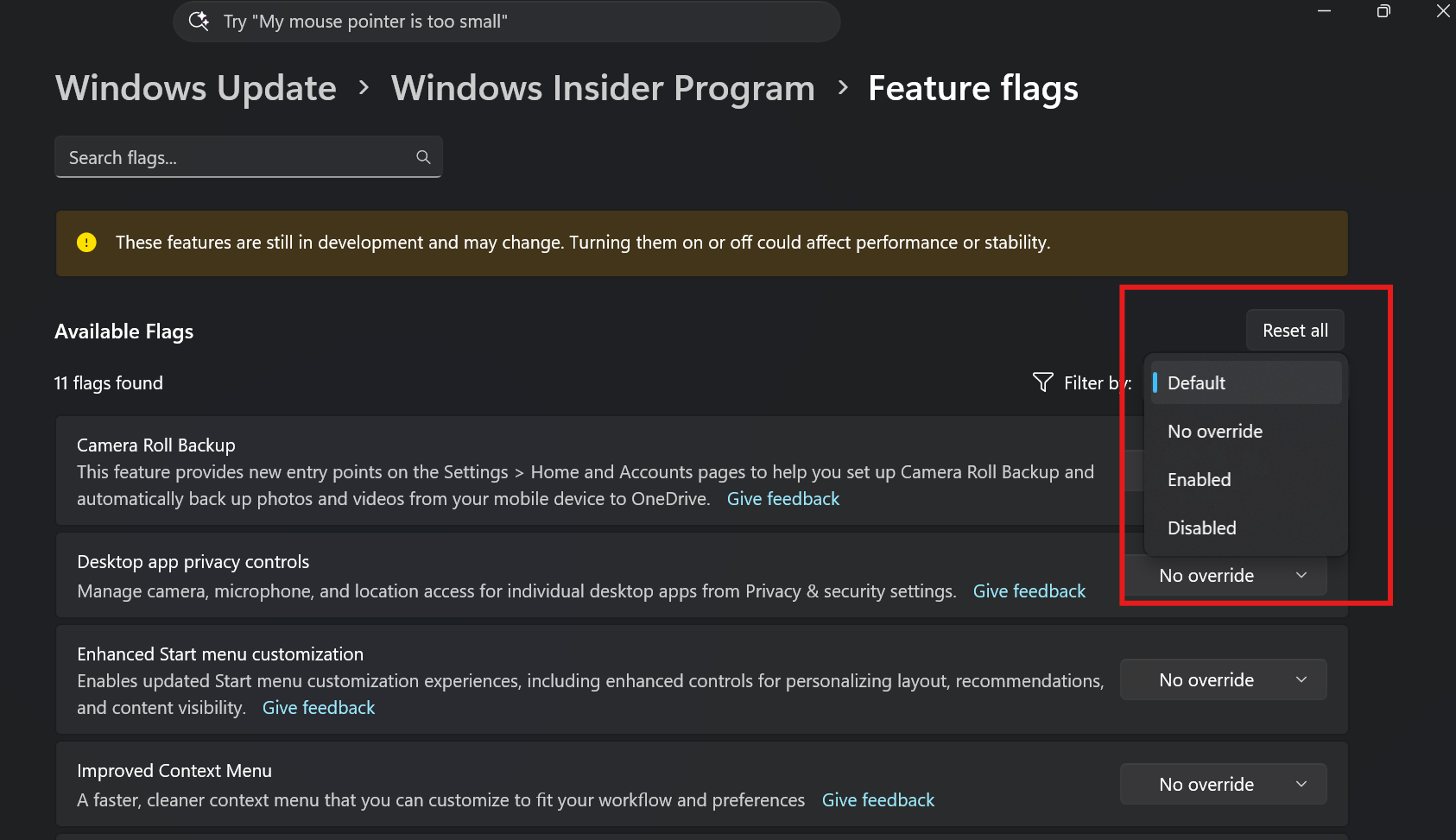 Feature flags filtered by enablement state on the Windows Insider Program settings page.[/caption]
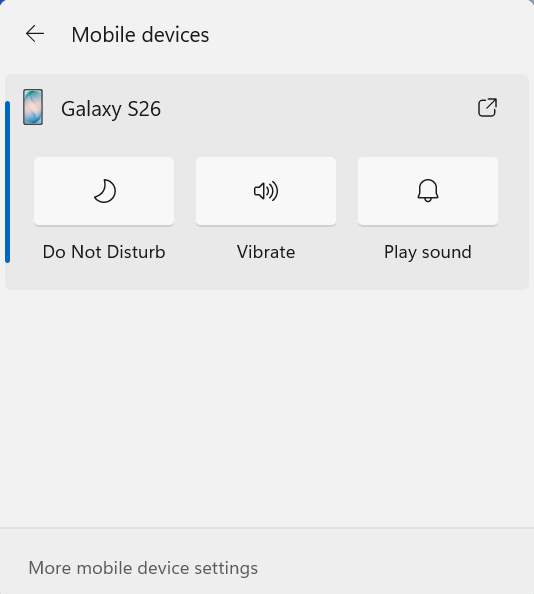 UI showing Mobile devices controls in Quick Settings for managing your connected Android phone.[/caption] Check your internet speed directly from Quick Settings
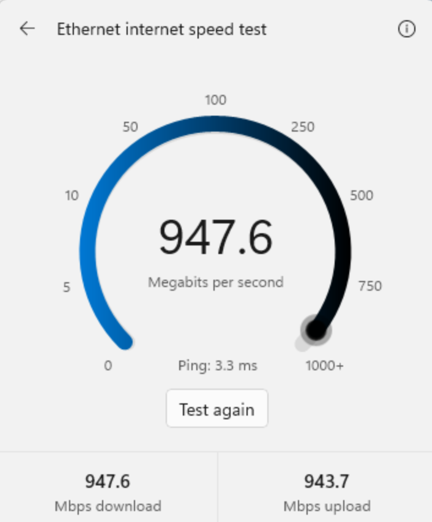 Internet speed test results in Windows.[/caption] Thanks, Stephen and the Windows Insider Program team
Continue reading...
- Beta: Build 26220.9757
- Experimental: Build 26340.9767
- Beta (26H1): Build 28020.3292
- Experimental (26H1): Build 28120.3302
- Experimental (Future Platforms): Build 29695.1001
Notable new features:
[Windows Insider Settings]
Release channel: Experimental- We've added the ability to filter Feature flags by enablement state.
Feature flags filtered by enablement state on the Windows Insider Program settings page.[/caption][Quick Settings]
Release channel: Experimental Access your phone controls from Quick Settings- We're beginning to roll out a new Mobile devices experience in Quick Settings, making it easier to take quick phone actions (such as ring your phone) without breaking your flow on Windows.
- With your supported Android phone connected, everyday actions are now just a click away. You can turn Do Not Disturb on before a meeting, change your phone's ringer mode, and play a sound to find your phone nearby.
- It's a simpler, faster way to manage your phone from the place you already use for quick Windows actions, helping your PC and phone work better together throughout the day.
- Capabilities can vary by phone platform and device configuration. The initial experience provides the most complete set of controls for Android phones, while iPhone support starts with a more limited status-focused experience.
UI showing Mobile devices controls in Quick Settings for managing your connected Android phone.[/caption] Check your internet speed directly from Quick Settings- We're making it faster and easier to check the performance of your internet connection in Windows. Windows Insiders can now run an internet speed test and see the results directly in Quick Settings, without being redirected to a browser.
- Start a test from the new Speed test Quick Setting, from the Wi-Fi or Cellular flyout, or by right-clicking the network icon in the system tray and selecting Test internet speed. While the test runs, Quick Settings shows its progress and results, including download speed, upload speed, and ping.
- Because the test runs against your active internet connection, you can quickly understand how your current connection is performing without leaving your workflow. This updated experience builds on the internet speed test we previously introduced for Windows Insiders, bringing the test and its results directly into Windows.
Internet speed test results in Windows.[/caption] Thanks, Stephen and the Windows Insider Program teamContinue reading...

