
TWF Bot
Staff member
- Joined
- Nov 29, 2020
- Messages
- 3,676

- Thread Author
- #1
Hello Windows Insiders, We have new releases today with builds across Beta and Experimental, including refreshed security certificates across all new builds. Renewed Windows Insider flight certificates All builds this week contain renewed Windows Insider flight certificates (Note: Experimental (Future Platforms) has already contained the renewed flight certificate since the build released earlier this week). Windows Insider Preview builds use flight certificates that are renewed periodically to help ensure Insider devices remain on supported builds and continue receiving future Insider Preview updates. The current flight certificate expires on August 11, 2026, so please update your device to a build containing the renewed flight certificate before that date. For more information, please visit the certificate renewal FAQ. New builds this week Today we are releasing new Windows 11 Insider Preview Builds. See your channel release notes here:
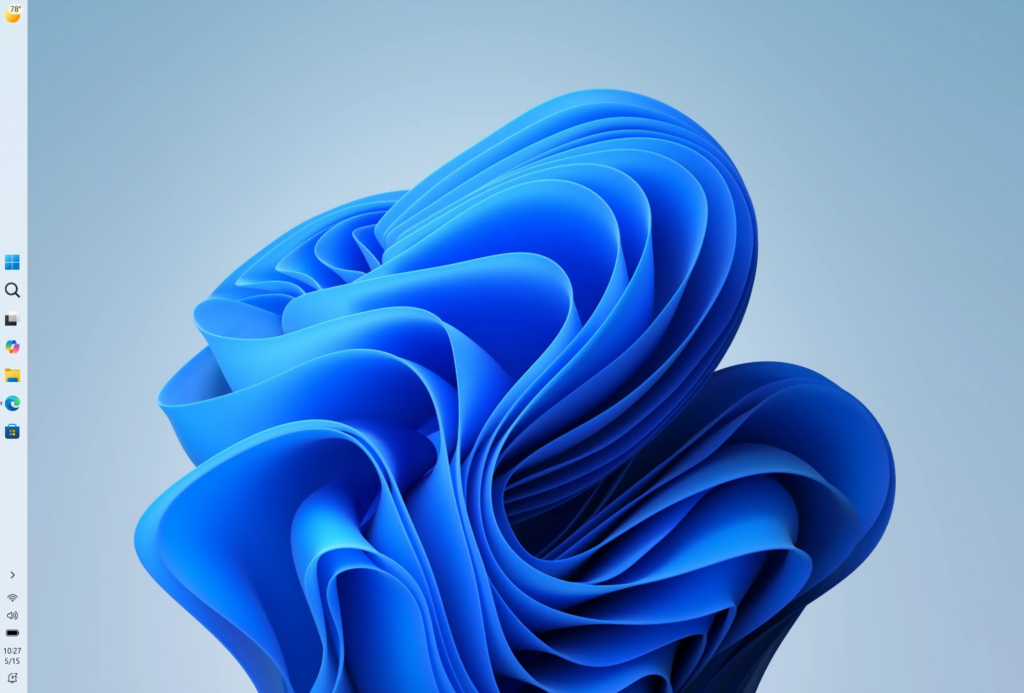 Screenshot of the taskbar in the left-aligned position.[/caption] Smaller Taskbar
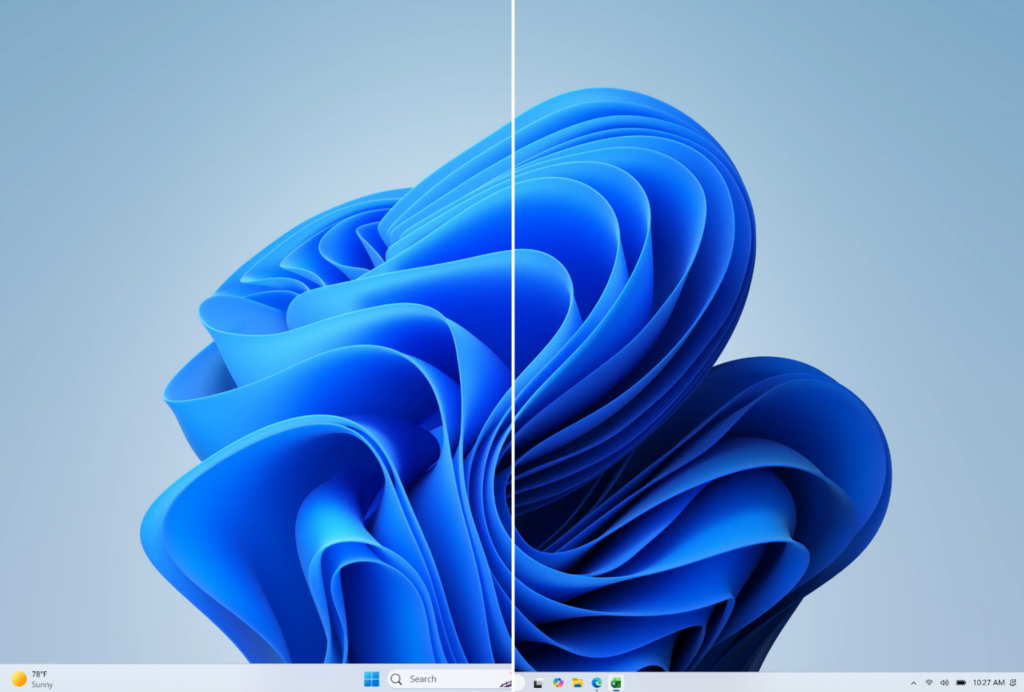 Side-by-side comparison of the standard and smaller taskbar heights on the same device and resolution, showing the additional screen space gained.[/caption] Thanks, Stephen and the Windows Insider Program team
Continue reading...
- Beta: Build 26220.9022
- Experimental: Build 26300.9032
- Beta (26H1): Build 28020.2623
- Experimental (26H1): Build 28120.2630
- Experimental (Future Platforms): Build 29639.1000
Notable new features:
[Adaptive Hibernate Policy]
Release channel: Experimental Updates to the adaptive hibernate policy to increase instances of instant-on resumes from Modern Standby and increased battery preservation at the low end of the battery. Noticeable changes include less hibernation while the battery is above 80% and hibernating sooner when the battery is below 10%.[Taskbar]
Release channel: Experimental, new to Beta Alternate Taskbar Position- You can now change the position of taskbar on your screen. In Settings > Personalization > Taskbar > Taskbar Behaviors, you can select the side of the screen you want your taskbar on: bottom, top, left, or right. In these other positions, tooltips, flyouts, and animations will still come from the taskbar, and most customization settings like never combine taskbar icons will work with all locations.
- Support for touch gestures, Search box, and Ask Copilot in alternate locations is in progress. Auto-hidden taskbar and touch optimized taskbar are not currently supported. Smaller taskbar is currently supported only for top and bottom positions.
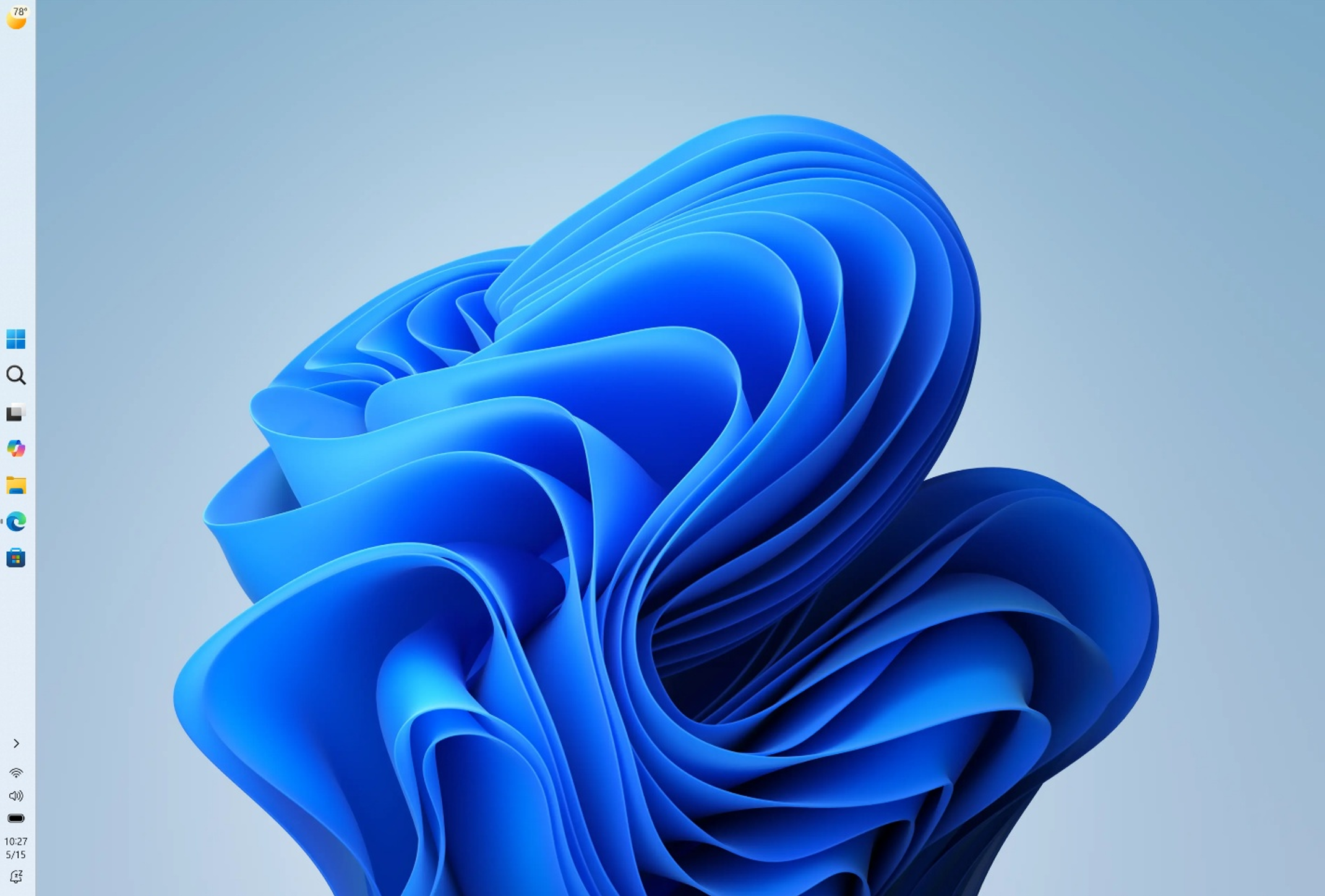 Screenshot of the taskbar in the left-aligned position.[/caption] Smaller Taskbar
- We’re introducing a smaller taskbar for users who want to maximize screen space, especially on smaller devices. While the default taskbar remains unchanged, this setting provides a more compact experience with smaller icons and a reduced taskbar height, giving you more room for your apps. Core elements like Start, Search, and the system tray scale appropriately to stay aligned and consistent.
- To change your taskbar size, go to Settings > Personalization > Taskbar > Taskbar behaviors > Taskbar size. When set to Small, both the icons and the taskbar height become smaller.
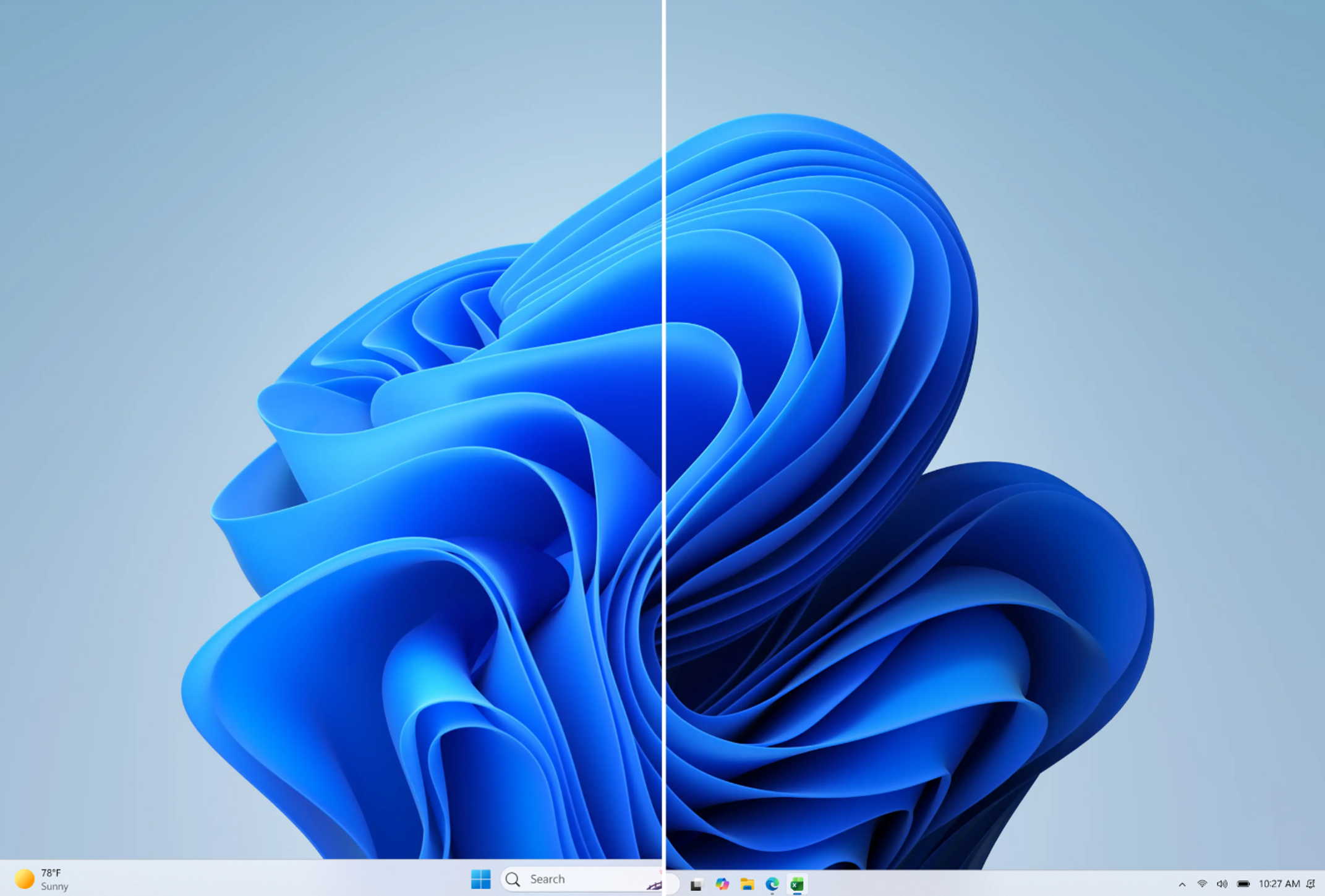 Side-by-side comparison of the standard and smaller taskbar heights on the same device and resolution, showing the additional screen space gained.[/caption] Thanks, Stephen and the Windows Insider Program team
Continue reading...

