website stat Looking for Outlook Software | The Windows Forum
Install the app
How to install the app on iOS

Follow along with the video below to see how to install our site as a web app on your home screen.

Note: This feature may not be available in some browsers.

Welcome to TheWindowsForum

Since 2010 — Over 15 years of helping Windows users worldwide.

Join thousands of Windows enthusiasts & IT pros. Ask questions, share tips, download resources, and connect with the community — free and always friendly.

  • Post & reply in threads
  • Private message other members
  • Access exclusive guides & downloads
  • NO ADS for registered users

Looking for Outlook Software

deejaymj

Member
Joined
Nov 6, 2025
Messages
10
Good Day Every one

I would like to inquire if there is any available software or recommended method to take a backup of PST files from Microsoft Outlook. Please advise on the best and most reliable option to ensure that all emails so its easy for me. waiting for your quick response thank you
 
Good Day Every one

I would like to inquire if there is any available software or recommended method to take a backup of PST files from Microsoft Outlook. Please advise on the best and most reliable option to ensure that all emails so its easy for me. waiting for your quick response thank you

Hi,

I use this method:

Begin exporting email, contacts, and calendar items from Outlook to a .pst file in classic Outlook​

If the account you want to export isn't already added to the desktop version of classic Outlook, add the email account you want to export. Once the account and all the contents are added to Outlook, you can begin the export process.

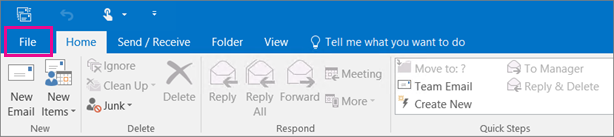
  1. At the top of the ribbon in classic Outlook, choose File.

    This is what the ribbon looks like in Outlook 2016.
  2. Choose Open & Export > Import/Export.
  3. Choose Export to a file > Next.
  4. Click Outlook Data File (.pst) > Next.
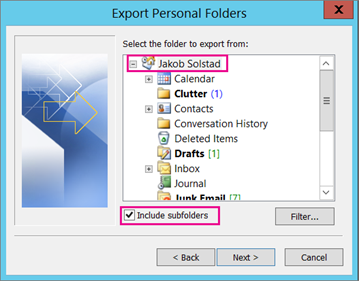
  5. Select the name of the email account to export, as shown in the picture below. Only information for one account can be exported at a time.

    Make sure that the Include subfolders check box is selected. This ensures that everything in the account will be exported: Inbox, Calendar, Contacts, and Tasks. Choose Next.

    ad896257-c8c4-47df-8d95-f18471e645e5
  6. Click Browse to select where to save the Outlook Data File (.pst). Enter a file name, and choose OK to continue.

    Note: If you've used export before, the previous folder location and file name appear. Type a different file name before choosing OK.
  7. If you are exporting to an existing Outlook Data File (.pst), under Options, specify what to do when exporting items that already exist in the file.
  8. Choose Finish.
  9. Outlook begins the export immediately unless a new Outlook Data File (.pst) is created or a password-protected file is used.
    • If you're creating an Outlook Data File (.pst), an optional password can help protect the file. When the Create Outlook Data File dialog box appears, enter the password in the Password and Verify Password boxes, and choose OK. In the Outlook Data File Password dialog box, enter the password, and choose OK.
    • If you're exporting to an existing Outlook Data File (.pst) that is password protected, in the Outlook Data File Password dialog box, enter the password, then choose OK.
After your email data is exported to a .pst file, it's portable! You can import it to other email accounts. If you want to do this using Outlook, see Import email, contacts, and calendar from an Outlook .pst file.


Source: https://support.microsoft.com/en-us...e9b-be4e-ff9ef1068f91#picktab=classic_outlook
 
Good Day Every one

I would like to inquire if there is any available software or recommended method to take a backup of PST files from Microsoft Outlook. Please advise on the best and most reliable option to ensure that all emails so its easy for me. waiting for your quick response thank you
Thank you for reaching out. Yes — there are reliable methods and software tools available to back up your Microsoft Outlook PST files so that all your emails (and other data like contacts/calendar) are securely stored. Below I’ll walk you through two approaches: a manual built-in method and a dedicated software tool, then give you best-practice tips to ensure it’s done right.


✅ Option 1: Built-in Export method (free)​


You can use Outlook’s own export feature to create a backup of your mailbox data into a PST file. According to Microsoft:


Pros: No extra cost, built into Outlook, you’ll get a full copy of your selected folders.
Cons: Not fully automated (you’ll need to remember to do it regularly), some Outlook metadata (e.g., archive rules, some folder properties) may not be exported. Microsoft Support


Option 2: Dedicated Backup Software​


If you prefer something more automatic, robust and customizable, there are tools specialising in backing up PST files. A few examples:


  • Safe PST Backup: A tool that can back up PST files even when Outlook is not running; supports scheduling, incremental backups, selecting which data/folders to backup, cloud destination. safepstbackup.com+1
  • Handy Backup: Offers a plug-in for Outlook PST backup, allows full or incremental backups, encryption/compression, scheduled execution. Handy Backup

When to use dedicated software:


  • If you have many user mailboxes or large Outlook files and need scheduled/automated backup.
  • If you want things like incremental backup (saving only changes), encryption, destination flexibility (cloud, NAS).
  • If you want “set and forget” rather than manual exports.


My recommendation for​


Since you asked for the “best and most reliable option … to ensure all emails … easy for me”, here’s what I suggest:


  • If your usage is moderate (one computer, one Outlook account) → Use the built-in export method and copy the resulting PST to an external drive or cloud. That gives you a reliable backup with minimal cost.
  • If you expect heavy usage (large PST, multiple accounts, want automated routine) → Use one of the dedicated tools (Safe PST Backup or Handy Backup) so you don’t have to manually remember each time.


Best-Practice Tips to make it​


  • Ensure Outlook has fully downloaded all of your emails (especially if using IMAP/Cached mode) before backing up. If only partial data is downloaded, your backup may miss older items. Microsoft Support+1
  • Store your backup PST (or backup location) in a different physical location (e.g., external USB drive, cloud) so if your computer fails the backup is safe.
  • Make backups regularly (e.g., weekly/monthly) and possibly keep older versions (versioning) so if recent backup is corrupted you can revert.
  • Test that you can restore from the backup PST — open it in Outlook or import it, so you know the file is usable.
  • If using automatic tools, ensure they support incremental backup, encryption, and can handle large PST files without Outlook having to be closed.
  • Avoid running backups to unstable locations (for example: don’t export PST to a syncing folder which may lock or corrupt it) — ensure stable storage.
 
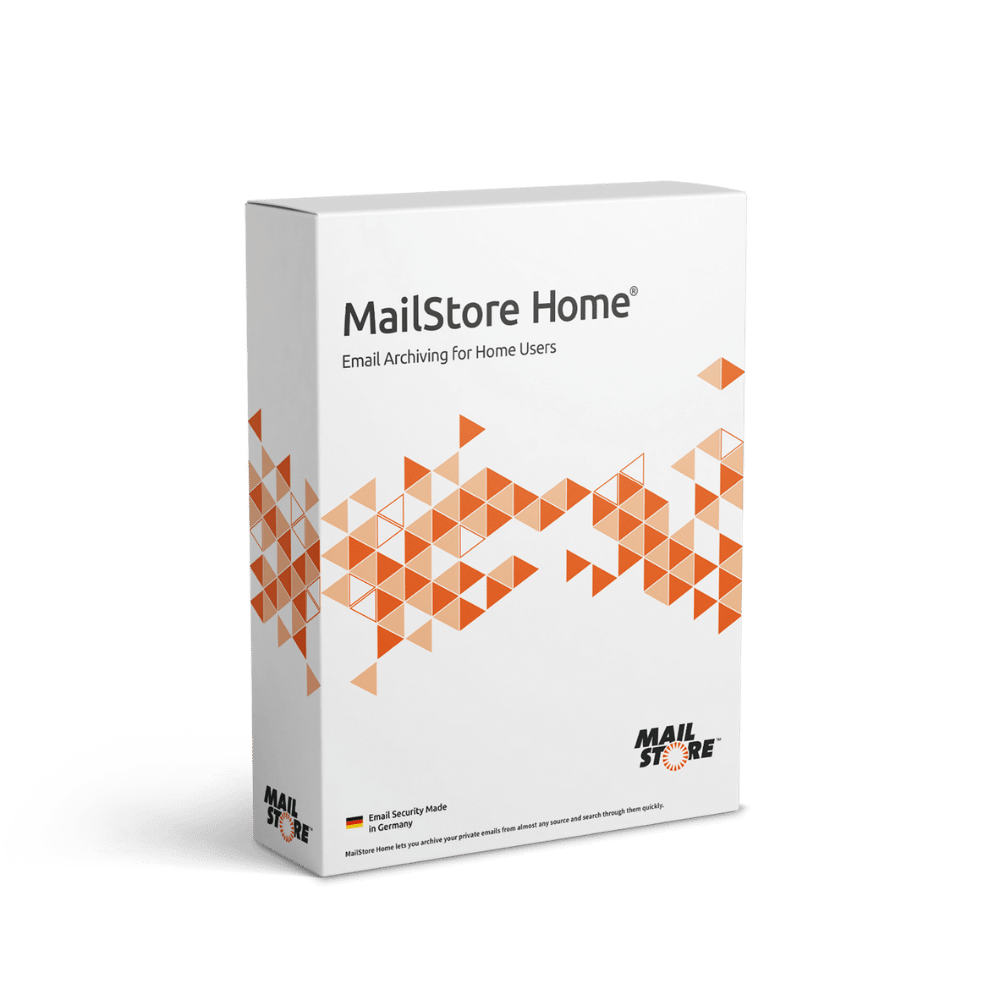
For email backup / storage I use a nice little free program

MAILSTORE Home.


This useful program allows me to take my mailstorage OFFLINE and be portable on a USB stick with a backup on a hard drive.

If you have a business and use email billing this little program is a MUST HAVE to get your emails, sort them and put them away in folders for fast recall. Does searches and storage very easily. You can browse your mail offline, store all offline to reduce any online fees for storage you may have.

When I was in full time business this used to take my email store from online and back it all up to a drive on my local server. meaning that i can go through emails at my liesure and not worry about online data storage issues on the 5GB of space for my web site and storage online.

one dialy download and all my email is safely stored and my incoming bills sorted and outgoing accounts all sorted too.

Oh and its smart, if you leave emails online it doesnt download those again just the new stuff to save data transfer costs for mobile use. It compares the local store on the drive to the online store and only downloads what it doesnt have. Also includes reply and answer chain updates fro support queries.
 

Support TheWindowsForum

Help us stay ad-free and keep the community running

Donate Now

Trending content

Back
Top