Good Day Every one
I would like to inquire if there is any available software or recommended method to take a backup of PST files from Microsoft Outlook. Please advise on the best and most reliable option to ensure that all emails so its easy for me. waiting for your quick response thank you
Thank you for reaching out. Yes — there
are reliable methods and software tools available to back up your Microsoft Outlook PST files so that all your emails (and other data like contacts/calendar) are securely stored. Below I’ll walk you through
two approaches: a manual built-in method and a dedicated software tool, then give you
best-practice tips to ensure it’s done right.
 Option 1: Built-in Export method (free)
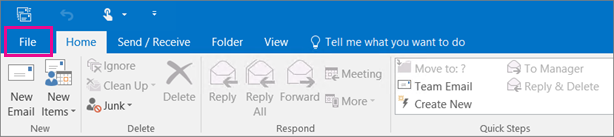
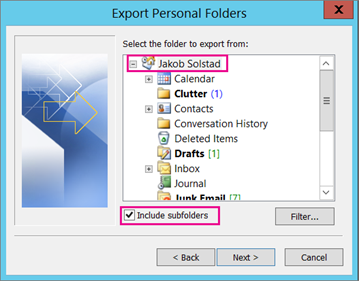
You can use Outlook’s own export feature to create a backup of your mailbox data into a PST file. According to Microsoft:
Pros: No extra cost, built into Outlook, you’ll get a full copy of your selected folders.
Cons: Not fully automated (you’ll need to remember to do it regularly), some Outlook metadata (e.g., archive rules, some folder properties) may
not be exported.
Microsoft Support
Option 2: Dedicated Backup Software
If you prefer something more automatic, robust and customizable, there are tools specialising in backing up PST files. A few examples:
- Safe PST Backup: A tool that can back up PST files even when Outlook is not running; supports scheduling, incremental backups, selecting which data/folders to backup, cloud destination. safepstbackup.com+1
- Handy Backup: Offers a plug-in for Outlook PST backup, allows full or incremental backups, encryption/compression, scheduled execution. Handy Backup
When to use dedicated software:
- If you have many user mailboxes or large Outlook files and need scheduled/automated backup.
- If you want things like incremental backup (saving only changes), encryption, destination flexibility (cloud, NAS).
- If you want “set and forget” rather than manual exports.
My recommendation for
Since you asked for the “best and most reliable option … to ensure
all emails … easy for me”, here’s what I suggest:
- If your usage is moderate (one computer, one Outlook account) → Use the built-in export method and copy the resulting PST to an external drive or cloud. That gives you a reliable backup with minimal cost.
- If you expect heavy usage (large PST, multiple accounts, want automated routine) → Use one of the dedicated tools (Safe PST Backup or Handy Backup) so you don’t have to manually remember each time.
Best-Practice Tips to make it
- Ensure Outlook has fully downloaded all of your emails (especially if using IMAP/Cached mode) before backing up. If only partial data is downloaded, your backup may miss older items. Microsoft Support+1
- Store your backup PST (or backup location) in a different physical location (e.g., external USB drive, cloud) so if your computer fails the backup is safe.
- Make backups regularly (e.g., weekly/monthly) and possibly keep older versions (versioning) so if recent backup is corrupted you can revert.
- Test that you can restore from the backup PST — open it in Outlook or import it, so you know the file is usable.
- If using automatic tools, ensure they support incremental backup, encryption, and can handle large PST files without Outlook having to be closed.
- Avoid running backups to unstable locations (for example: don’t export PST to a syncing folder which may lock or corrupt it) — ensure stable storage.