Welcome to the Forums
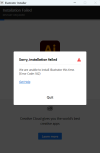
To resolve error code 182 while installing Illustrator, try changing the installation language to English (North America) or moving the installation folder to a simpler path, such as the Desktop. Additionally, ensure your Windows operating system is up to date and that you have the necessary permissions.
 partitionwizard.com
 Adobe
Troubleshooting Error Code 182 for Illustrator Installation
Error code 182 can occur during the installation of Adobe Illustrator due to various reasons. Here are some effective solutions to resolve this issue.
Change Installation Language
- Switch Language: Change the installation language to English (North America) or English (International). This has helped many users successfully complete their installations.
Simplify Installation Path
- Move Installation Folder:
- Navigate to the location of your Adobe installation files.
- Move the installation folder to a simpler path, such as the Desktop.
- Rename the folder to something straightforward, like Adobe_Install.
Update Windows
- Check for Updates: Ensure your Windows operating system is up to date. An outdated OS can lead to installation issues.
Permissions and Access
- Verify Permissions: Make sure you have the necessary permissions to install software on your computer. If you are using a corporate or school PC, strict user account controls may be in place.
Summary of Steps
| Step | Action |
|---|
| Change Language | Set to English (North America) |
| Move Installation Folder | Place in a simple path (e.g., Desktop) |
| Update Windows | Ensure your OS is current |
| Check Permissions | Verify you have installation rights |
By following these steps, you should be able to resolve error code 182 and successfully install Adobe Illustrator.