Diguelo
Donator
- Joined
- Feb 1, 2023
- Messages
- 893

- Thread Author
- #1
TCP OPTIMISER
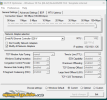
A wonderful free utility
Written in the days when the only thing for internet was a dialup 56k audio modem and a land telephone line. Mobile phones were the size of a house brick and rarer than hens teeth in the hands of teenagers and all but the well to do in society.
Ok description, WHAT IS IT ?
Well for a start it is something to open your eyes to how bad your super fast internet connection actually is when your downloading at the speed of light on the latest fibre optic cable lines and getting GIGABYTES of data per second compared to the sialup day of 10KB/sec if you were extremely lucky.
Ok so why do i need this wonder of technology thats olde than my kids. Well to roughly round it all up, theres something called Internet or cable noise to be considered in your homes phone line. Between your home you probably have a few or a hunred miles of cable between you and the sender you are trying to talk to, not to mention all the electronic jiggerypokery it passes through on the way to each other, servers, excahnges, sattellite links and lets not forget the big yellow ball, our SUN. All this causes noise, not all of it is audible, some noise is magnetic, some is static and one of the larger culprits is MAINS hum from your homes electrical supply. Want to hear this noise, turn on any stereo, or radio in your home and wind up the volume and the dim noise in the background can be heard. This is normally mains hum at 50 - 70 Hz inside what your ears can actually hear
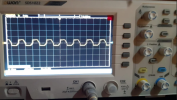
Looks like this if you could see it. But now lets switch to the all important DATA you want to get a perfect load of with zero or as close to sero as you can possivbly get. That is especially when you play online MMORPG or SHOOTER games where seconds and milliseconds count between a shot and istant death.
Games when talking to servers require zero and ones only for data to be sent back and forth, in some cases if you live miles away from your nearest connection service to the game, then the line noise maybe killing some of the zeros and making them appear like 1. Each packet of data your computer sends and receives to the internet theoretically should have 1500 Bytes or numbers of data but your receiver at the other end may only receive 1238 missing off some of the vital bytes.
Heres a simple DOS line to show actually what you send and receive and how it is described at the other end. The call in DOS is PING followed by the address you wish to check on so for this im going to make use of the BBC.co.uk website in Londong England. My connection to the internet is around 2 miles from my home in Centra; England so the distance my signal has to travel is around 130 miless over land through 8 exchanges.
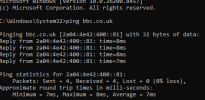
So as you can see, my ping test banged out 4 data packets, three of which arrived and returned in just 8ms, but the last one dia it 12% faster at 7ms. Which tells me there is some noise on my line that didnt vanish as part of my signal, the last data packet would have sent through 12% more data correctly without mistakes thatn the other 3.
So the fatser tha time between your packets being sent and received is what gamers love to call LAG, what if the missing data in that packet was the one byte that said SHOOT and it never got received or was received and dropped as bad data.
In fairness my line is a fast Fibre line, bad ping is pretty much a thing of my past now, worst ping I have had is connecting to a 56k modem link in Australia, Sydney to just do a speed test. The ping time there was approx 4.87 seconds to receive and send one perfect package of data. So as qan example if I had sent a string of data, lets say
Sent:
"Pinging can be fun if your lucky you ought to achieve good numbers on a sunny evening"
Received
"Pi......c..k y....o..u r n o s e"
Data recieved and data sent mean 2 entirely different things due to data being mixed with line noise and the lot subject to your network connection being sorted out in whats is correct and what is rubbish
So the TCP Optimiser
To start with when you first run it, the Connection speed slider will probably be set to your achieved Internet line connection speed, not what your paying for. Me I pay for a 150 MB/sec line and achieve
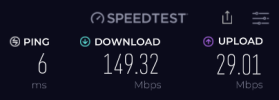
(Result from the SpeedTest web app.)
So I get 149.32 at a peak time UK download and 29.01 Mb/sec upload speed, BUT this doesnt factor in the line noise just what data I am getting when the test was done. So what percentage errors do i get, well between me and Birmingham is around 60 miles in a straight line. the distance it actually travels can go through around 10 noise sources. Therefore i too get missed data.
So for the purpose of showing you how to get the best data percentage sent and received we have to set up what is called the Maximum Transmittable Data amount or the MTU of your PC or laptop. By default your Internet Supplier will send you equipment set on 1500 bytes/second. Because thats what you pay for and they rely on your ignorance as a user to know what it is and what it can do. So obviously this figure is only achieved If your live next door to the server you wish to talk to, highly unlikely.
So to show you the effect difference, Heres an ingame connection test result for a game I play online

Here you see my ping time with the MTU set to 1500 default for all modems, and routers from ALL companies, (they all think the connection they supply is perfect, bless them all)
In there you can see the connection time between me and the server the gmae is hosted on, 209ms. OMG ill be dead before i know it. basically data packets get sent to and fro one every 209 milliseconds perfectly, which means more get lost than get received.
Now I have used to TCP Optimizer. to set this to my perfect speed of 1484 ( 2 x 8 bytes off the 1500 it was seet to) heres the difference its gone from what it was 209,

Now this is better gone from 5 perfect packets of data per second to 50 perfect packets of data per second and this is between me and the Game hosted in Europe some 150 miles and a walk between me and the goal.
How to do it.
So now all you need is the town, city or county the game server is hosted in. Getting the exact IP address for servers is usually blocked to prevent more traffic taking up vital bandwidth on a game server than is necessary. Finding the servers rough location is more than enough. Distortion in a city is minor compared to the rest of the journey so if a Game host is in say New York, USA, just find an ip address in that place, usually you can google one that close enough.
Ok so lets got through it
The program can be obtained FREE of charge from SPEEDTEST.net google it and go to that site to get it ONLY.
Once installed, do a restart of your PC
2. run the program in Administrator mode.
Right click on the icon and select the "Run As Administrator" in the menu.
3. As the program loads it will collect data about your connection, its speed and the Model internet link in your machine, on mi8ne it is "Intel(R) Ethernet Controller 1226 -V" youll see it in the Network Adapter selection. The pull down menu will allow you to select which of the network adapters you have (if more than 1) currently running your connection.
4. The slider (Connection Speed will give you an idea of what the network adapter thinks is your internet paid plan speeed, if it doesnt match what you have just move it to the point where what you pay for matches whats displayed, mine is 150MB/sec, on my general line or 1.2GB/sec on my business line. The slower is for gaming.
5. Ok lets switch it on. In the Choose Settings selection area at the bottom, chose CUSTOM. Generally if you havent messed with the MTU since having the machine then it will be at Windows Defaults 1500. Once option is clicked, then lets get that IP address you found instralled.
6. Click on the MTU/ :atency tab at the top.
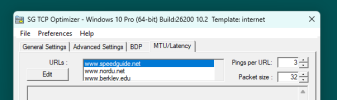
Use the down arrow select the slot in the suggested sites you might try. I go to the bottom then click on edit and put the URL in the box and click OK
7. OK all done and ready to go. Click on Largest MTU at the bottom and watch the test results
Mine for this test were
Pinging [151.101.0.81] with 1500 bytes -> ..fragmented
Pinging [151.101.0.81] with 750 bytes ->bytes=750 time=7ms TTL=58
Pinging [151.101.0.81] with 1125 bytes ->bytes=1125 time=7ms TTL=58
Pinging [151.101.0.81] with 1312 bytes ->bytes=1312 time=7ms TTL=58
Pinging [151.101.0.81] with 1406 bytes ->bytes=1406 time=7ms TTL=58
Pinging [151.101.0.81] with 1453 bytes ->bytes=1453 time=8ms TTL=58
Pinging [151.101.0.81] with 1476 bytes -> ..fragmented
Pinging [151.101.0.81] with 1464 bytes -> ..fragmented
Pinging [151.101.0.81] with 1458 bytes -> ..fragmented
Pinging [151.101.0.81] with 1455 bytes ->bytes=1455 time=8ms TTL=58
Pinging [151.101.0.81] with 1456 bytes ->bytes=1456 time=7ms TTL=58
Pinging [151.101.0.81] with 1457 bytes -> ..fragmented
The largest possible non-fragmented packet is 1456 (1484 - 28 ICMP & IP headers).
You can set your MTU to 1484
So repeated tests per second provide the average best results and if the data sent was the data recieved, if it was its recorded, if not then it says Fragmented.
So out of this test my best MTU is
The largest possible non-fragmented packet is 1456 (1484 - 28 ICMP & IP headers).
So make a note. You can also see what it a TTL setting or Time To Live as it used to be called, usually its a True Time Latency score in milliseconds. so if you main page says a higher number lower it to the one shown.
8 so now you have the precious numbers needed, you can add these to the main page oin the utility. so Click on the General Settings Tab
Here you enter,
Max MTU in the box provided.
TTL if its different from what is displayed. Generally with this I use 64, this saves me messing with it for general web browsing.
So now you have the settings installed just click on the Apply Changes button at the bottom, youll be asked to reboot the machine, do so and that has your new settings installed in the machine.
Youve seen above the difference it made to my online gaming ability. and general browsing is also faster as well as downloading speeds.
I hope this has helped you out to a better connection and to get what you pay for off the Internet Providers. Those of you advanced enough can put these settings directly into your routers settings.
A wonderful free utility
Written in the days when the only thing for internet was a dialup 56k audio modem and a land telephone line. Mobile phones were the size of a house brick and rarer than hens teeth in the hands of teenagers and all but the well to do in society.
Ok description, WHAT IS IT ?
Well for a start it is something to open your eyes to how bad your super fast internet connection actually is when your downloading at the speed of light on the latest fibre optic cable lines and getting GIGABYTES of data per second compared to the sialup day of 10KB/sec if you were extremely lucky.
Ok so why do i need this wonder of technology thats olde than my kids. Well to roughly round it all up, theres something called Internet or cable noise to be considered in your homes phone line. Between your home you probably have a few or a hunred miles of cable between you and the sender you are trying to talk to, not to mention all the electronic jiggerypokery it passes through on the way to each other, servers, excahnges, sattellite links and lets not forget the big yellow ball, our SUN. All this causes noise, not all of it is audible, some noise is magnetic, some is static and one of the larger culprits is MAINS hum from your homes electrical supply. Want to hear this noise, turn on any stereo, or radio in your home and wind up the volume and the dim noise in the background can be heard. This is normally mains hum at 50 - 70 Hz inside what your ears can actually hear
Looks like this if you could see it. But now lets switch to the all important DATA you want to get a perfect load of with zero or as close to sero as you can possivbly get. That is especially when you play online MMORPG or SHOOTER games where seconds and milliseconds count between a shot and istant death.
Games when talking to servers require zero and ones only for data to be sent back and forth, in some cases if you live miles away from your nearest connection service to the game, then the line noise maybe killing some of the zeros and making them appear like 1. Each packet of data your computer sends and receives to the internet theoretically should have 1500 Bytes or numbers of data but your receiver at the other end may only receive 1238 missing off some of the vital bytes.
Heres a simple DOS line to show actually what you send and receive and how it is described at the other end. The call in DOS is PING followed by the address you wish to check on so for this im going to make use of the BBC.co.uk website in Londong England. My connection to the internet is around 2 miles from my home in Centra; England so the distance my signal has to travel is around 130 miless over land through 8 exchanges.
So as you can see, my ping test banged out 4 data packets, three of which arrived and returned in just 8ms, but the last one dia it 12% faster at 7ms. Which tells me there is some noise on my line that didnt vanish as part of my signal, the last data packet would have sent through 12% more data correctly without mistakes thatn the other 3.
So the fatser tha time between your packets being sent and received is what gamers love to call LAG, what if the missing data in that packet was the one byte that said SHOOT and it never got received or was received and dropped as bad data.
In fairness my line is a fast Fibre line, bad ping is pretty much a thing of my past now, worst ping I have had is connecting to a 56k modem link in Australia, Sydney to just do a speed test. The ping time there was approx 4.87 seconds to receive and send one perfect package of data. So as qan example if I had sent a string of data, lets say
Sent:
"Pinging can be fun if your lucky you ought to achieve good numbers on a sunny evening"
Received
"Pi......c..k y....o..u r n o s e"
Data recieved and data sent mean 2 entirely different things due to data being mixed with line noise and the lot subject to your network connection being sorted out in whats is correct and what is rubbish
So the TCP Optimiser
To start with when you first run it, the Connection speed slider will probably be set to your achieved Internet line connection speed, not what your paying for. Me I pay for a 150 MB/sec line and achieve
(Result from the SpeedTest web app.)
So I get 149.32 at a peak time UK download and 29.01 Mb/sec upload speed, BUT this doesnt factor in the line noise just what data I am getting when the test was done. So what percentage errors do i get, well between me and Birmingham is around 60 miles in a straight line. the distance it actually travels can go through around 10 noise sources. Therefore i too get missed data.
So for the purpose of showing you how to get the best data percentage sent and received we have to set up what is called the Maximum Transmittable Data amount or the MTU of your PC or laptop. By default your Internet Supplier will send you equipment set on 1500 bytes/second. Because thats what you pay for and they rely on your ignorance as a user to know what it is and what it can do. So obviously this figure is only achieved If your live next door to the server you wish to talk to, highly unlikely.
So to show you the effect difference, Heres an ingame connection test result for a game I play online
Here you see my ping time with the MTU set to 1500 default for all modems, and routers from ALL companies, (they all think the connection they supply is perfect, bless them all)
In there you can see the connection time between me and the server the gmae is hosted on, 209ms. OMG ill be dead before i know it. basically data packets get sent to and fro one every 209 milliseconds perfectly, which means more get lost than get received.
Now I have used to TCP Optimizer. to set this to my perfect speed of 1484 ( 2 x 8 bytes off the 1500 it was seet to) heres the difference its gone from what it was 209,
Now this is better gone from 5 perfect packets of data per second to 50 perfect packets of data per second and this is between me and the Game hosted in Europe some 150 miles and a walk between me and the goal.
How to do it.
So now all you need is the town, city or county the game server is hosted in. Getting the exact IP address for servers is usually blocked to prevent more traffic taking up vital bandwidth on a game server than is necessary. Finding the servers rough location is more than enough. Distortion in a city is minor compared to the rest of the journey so if a Game host is in say New York, USA, just find an ip address in that place, usually you can google one that close enough.
Ok so lets got through it
The program can be obtained FREE of charge from SPEEDTEST.net google it and go to that site to get it ONLY.
Once installed, do a restart of your PC
2. run the program in Administrator mode.
Right click on the icon and select the "Run As Administrator" in the menu.
3. As the program loads it will collect data about your connection, its speed and the Model internet link in your machine, on mi8ne it is "Intel(R) Ethernet Controller 1226 -V" youll see it in the Network Adapter selection. The pull down menu will allow you to select which of the network adapters you have (if more than 1) currently running your connection.
4. The slider (Connection Speed will give you an idea of what the network adapter thinks is your internet paid plan speeed, if it doesnt match what you have just move it to the point where what you pay for matches whats displayed, mine is 150MB/sec, on my general line or 1.2GB/sec on my business line. The slower is for gaming.
5. Ok lets switch it on. In the Choose Settings selection area at the bottom, chose CUSTOM. Generally if you havent messed with the MTU since having the machine then it will be at Windows Defaults 1500. Once option is clicked, then lets get that IP address you found instralled.
6. Click on the MTU/ :atency tab at the top.
Use the down arrow select the slot in the suggested sites you might try. I go to the bottom then click on edit and put the URL in the box and click OK
7. OK all done and ready to go. Click on Largest MTU at the bottom and watch the test results
Mine for this test were
Pinging [151.101.0.81] with 1500 bytes -> ..fragmented
Pinging [151.101.0.81] with 750 bytes ->bytes=750 time=7ms TTL=58
Pinging [151.101.0.81] with 1125 bytes ->bytes=1125 time=7ms TTL=58
Pinging [151.101.0.81] with 1312 bytes ->bytes=1312 time=7ms TTL=58
Pinging [151.101.0.81] with 1406 bytes ->bytes=1406 time=7ms TTL=58
Pinging [151.101.0.81] with 1453 bytes ->bytes=1453 time=8ms TTL=58
Pinging [151.101.0.81] with 1476 bytes -> ..fragmented
Pinging [151.101.0.81] with 1464 bytes -> ..fragmented
Pinging [151.101.0.81] with 1458 bytes -> ..fragmented
Pinging [151.101.0.81] with 1455 bytes ->bytes=1455 time=8ms TTL=58
Pinging [151.101.0.81] with 1456 bytes ->bytes=1456 time=7ms TTL=58
Pinging [151.101.0.81] with 1457 bytes -> ..fragmented
The largest possible non-fragmented packet is 1456 (1484 - 28 ICMP & IP headers).
You can set your MTU to 1484
So repeated tests per second provide the average best results and if the data sent was the data recieved, if it was its recorded, if not then it says Fragmented.
So out of this test my best MTU is
The largest possible non-fragmented packet is 1456 (1484 - 28 ICMP & IP headers).
So make a note. You can also see what it a TTL setting or Time To Live as it used to be called, usually its a True Time Latency score in milliseconds. so if you main page says a higher number lower it to the one shown.
8 so now you have the precious numbers needed, you can add these to the main page oin the utility. so Click on the General Settings Tab
Here you enter,
Max MTU in the box provided.
TTL if its different from what is displayed. Generally with this I use 64, this saves me messing with it for general web browsing.
So now you have the settings installed just click on the Apply Changes button at the bottom, youll be asked to reboot the machine, do so and that has your new settings installed in the machine.
Youve seen above the difference it made to my online gaming ability. and general browsing is also faster as well as downloading speeds.
I hope this has helped you out to a better connection and to get what you pay for off the Internet Providers. Those of you advanced enough can put these settings directly into your routers settings.
Last edited: